
TL;DR
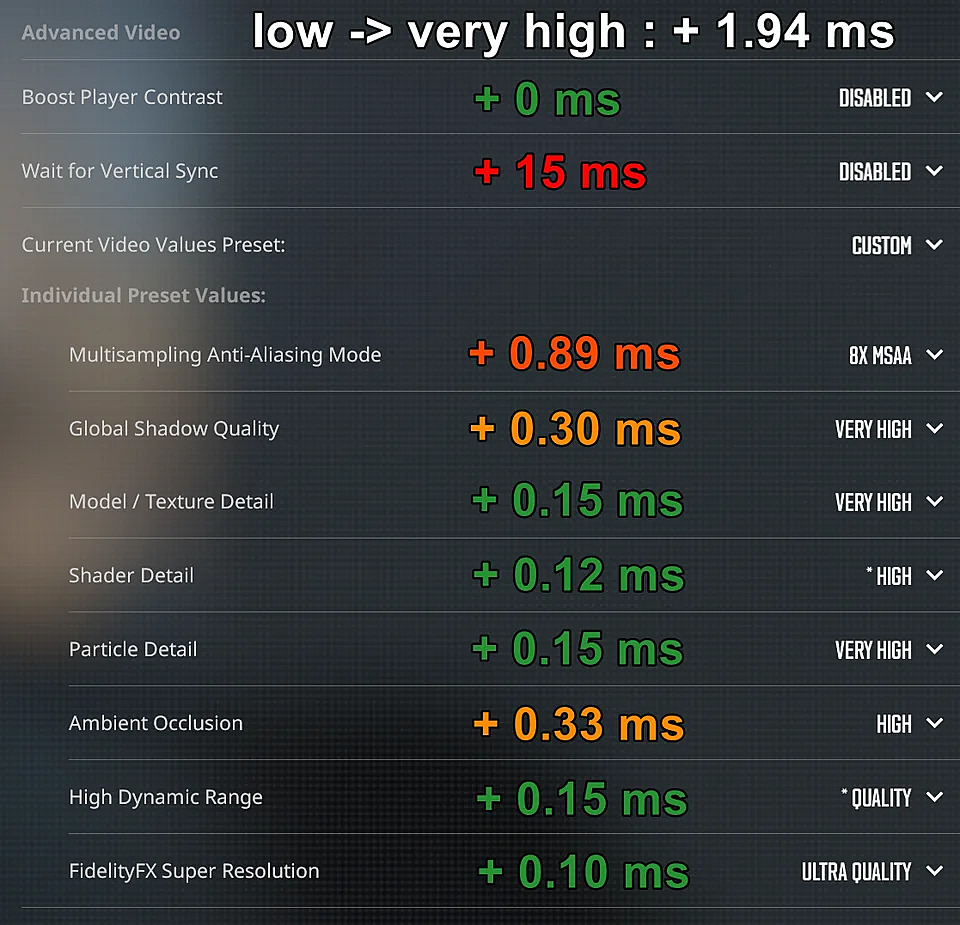
- Disable Vertical Sync completely for immediate input lag reduction
- Use borderless window mode for optimal alt-tabbing without performance penalty
- Most other video settings have minimal impact (under 2ms difference)
- Combine software settings with hardware optimization for best results
- Regularly monitor performance and adjust settings as CS2 updates release
Games and Esports Articles CS 2
Input latency represents one of the most significant performance hurdles that competitive CS2 players encounter during the limited beta phase. This delay between player actions and on-screen responses can dramatically impact aiming precision and reaction times during intense firefights. Community researcher Piwielle conducted comprehensive testing to identify which video configurations either exacerbate or alleviate this problematic effect. His methodology incorporated Nvidia FrameView analytics alongside supplementary diagnostic utilities to guarantee measurement accuracy and result reliability across multiple testing sessions.
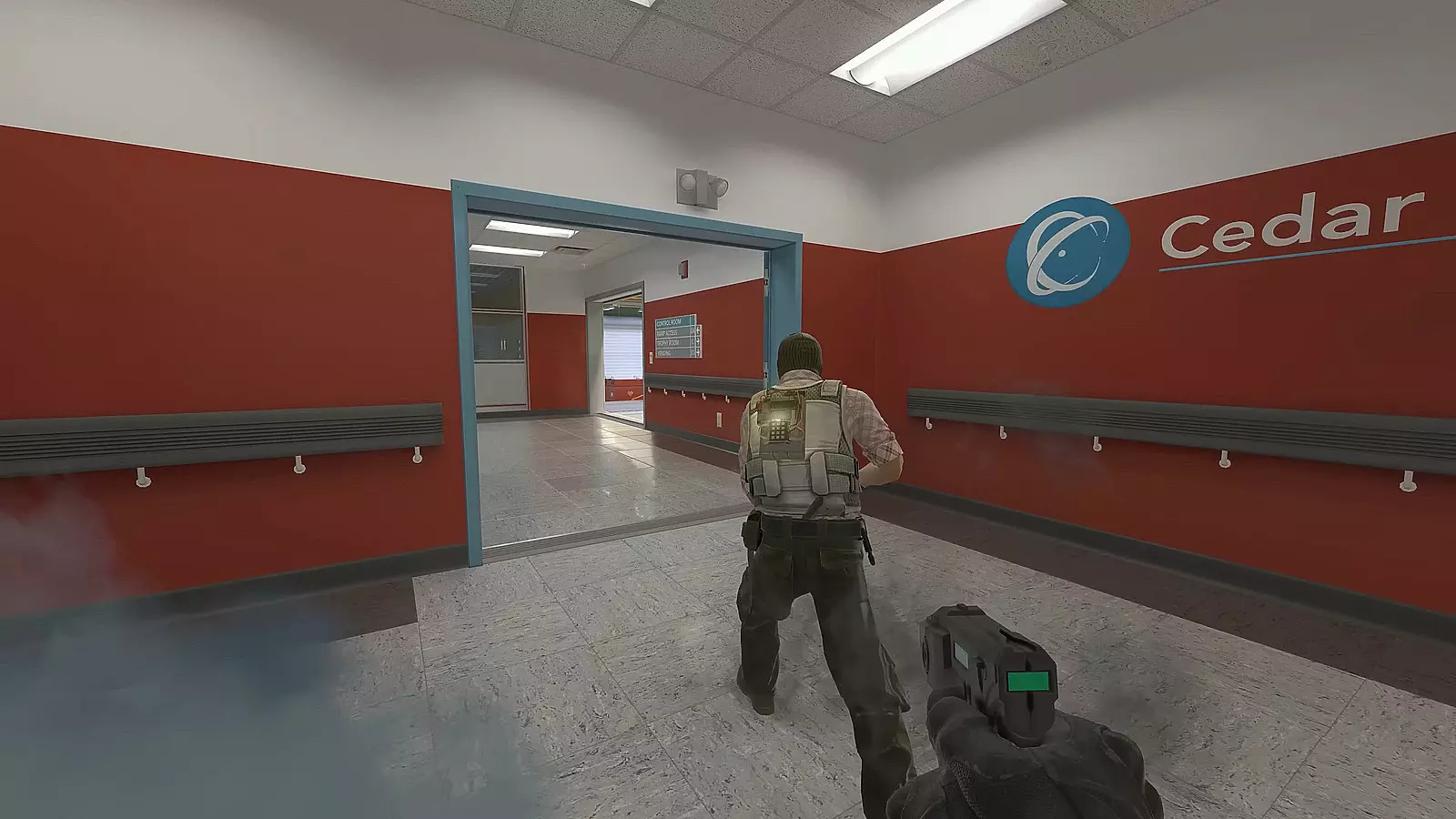
The single most impactful adjustment for reducing input delay involves completely disabling Vertical Sync in your video settings. Piwielle’s experiments occurred on isolated servers using the -insecure launch parameter to eliminate performance fluctuations triggered by Valve Anti-Cheat systems. Interestingly, alternative video preferences collectively contribute to input latency increases of approximately 2 milliseconds maximum, which remains practically imperceptible during normal gameplay scenarios. Fullscreen versus borderless window display modes demonstrated negligible differences in input latency measurements, though borderless configuration provides significantly faster application switching capabilities.
CS2 enthusiasts persistently refine their gaming experience and system performance while Valve addresses underlying technical issues. The development team recently enhanced frame rates across various maps by percentages ranging from 3% to 12%. For comprehensive performance optimization, our Complete Guide covers additional techniques to maximize your FPS output.
Beyond basic video settings, competitive players should consider several advanced optimization approaches. Monitor refresh rate synchronization with your GPU’s output remains crucial—ensure your display operates at its maximum supported frequency. For weapon customization and loadout optimization, consult our Weapons Unlock guide for detailed equipment strategies. Additionally, proper Class Guide provides essential role-specific performance tips that complement technical optimizations.
How to boost FPS in CS2. Best settings and launch options for maximum FPS on slow PCs in CS2
Common optimization mistakes include over-aggressive resolution scaling and unnecessary background application resource consumption. Advanced users should prioritize GPU driver updates, monitor response time settings, and in-game network configuration adjustments. These combined approaches typically yield 15-25% overall performance improvements when implemented systematically.
Action Checklist
- Disable Vertical Sync completely in video settings
- Switch to borderless window mode for optimal alt-tabbing
- Verify monitor refresh rate matches GPU output frequency
- Update GPU drivers to latest stable version
- Monitor system performance using tools like Nvidia FrameView
No reproduction without permission:Game Guides » Best video settings to remove input lag in CS2 Expert guide to eliminate CS2 input lag with proven settings, performance optimization, and practical gaming enhancements