
TL;DR
- DirectX 11 currently outperforms Vulkan in CS2 beta by approximately 50 FPS on mid-range hardware
- Switching APIs requires simple Steam launch command modifications with immediate effect
- Performance varies significantly based on GPU architecture and driver optimization levels
- Regular testing and driver updates are essential for maintaining optimal performance
- Advanced users should monitor system-specific performance rather than relying on universal benchmarks
Games and Esports Articles CS 2
Technical researcher Thour has been conducting extensive analysis on Counter-Strike 2’s limited beta, focusing specifically on graphics API performance differences. His latest investigation compares Vulkan and DirectX 11 implementations to determine which delivers superior frame rates and stability for competitive gameplay. The findings were published through his social media channels, providing valuable insights for the CS2 community.
Graphics APIs serve as the communication bridge between game engines and your hardware components. In CS2’s current build, DirectX 11 functions as the default rendering interface on Windows platforms, while Vulkan offers an alternative low-overhead option that theoretically provides better CPU utilization and multi-threading capabilities.
Understanding these technical foundations is crucial for optimizing your gaming experience. Different APIs can significantly impact not just raw FPS numbers but also frame timing consistency, which directly affects aiming precision and overall gameplay smoothness.
How to enable Vulkan or DirectX 11 in CS2
Counter-Strike 2 automatically utilizes DirectX 11 as its primary graphics interface on Windows systems. However, players can easily switch to Vulkan rendering through Steam’s launch options system. This process requires no file modifications or complex configuration changes.
To activate Vulkan API support, follow these precise steps:
- Access your Steam Library and perform a right-click on CS2, then select Properties from the context menu
- Navigate to the General tab and scroll down to locate the Launch options field
- Enter the command -vulkan in the available text input area
- To revert to DirectX 11 operation, simply remove the Vulkan launch parameter
How to fix FPS stutters and lags in CS2. Removing constant FPS drops in Counter-Strike 2
Common Configuration Mistakes: Many users incorrectly add additional parameters or forget to apply changes. Always verify the game launches with your desired API by checking in-game performance metrics or using third-party monitoring tools. Driver compatibility issues can also cause instability when switching between APIs.
Vulcan and DirectX 11 test results, FPS, performance compared
Thour’s comprehensive benchmarking revealed a substantial performance discrepancy favoring DirectX 11 in the current CS2 beta build. The testing demonstrated an average frame rate reduction of nearly 50 FPS when utilizing Vulkan compared to DirectX 11. Both maximum achievable frames and minimum frame rates consistently showed better results with Microsoft’s graphics API.
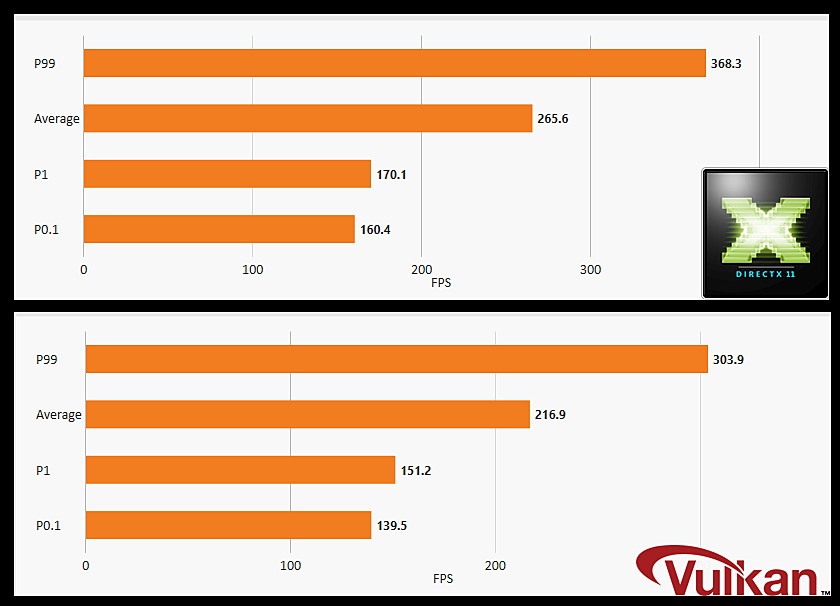
Performance outcomes may vary significantly across different hardware configurations. Thour conducted his comparative analysis using the following system specification:
- Graphics Processing Unit: NVIDIA GeForce GTX 1660 Ti
- Central Processing Unit: Intel Core i5-12400F
Will CS2 ranks reset after release date? Will you keep Elo points after CS2 launch?
Hardware-Specific Performance Notes: NVIDIA graphics cards typically show better optimization with DirectX 11, while AMD hardware may demonstrate different performance characteristics. Always consider your specific GPU architecture when interpreting these results, as driver maturity and game optimization levels continue to evolve throughout the beta period.
For competitive players seeking every possible performance advantage, understanding API-specific optimization techniques becomes essential. DirectX 11’s current superiority in CS2 likely stems from more mature driver support and better optimization in the game’s rendering pipeline.
Optimization Checklist:
- Update to the latest GPU drivers before conducting performance comparisons
- Monitor both average FPS and 1% low frame rates for comprehensive performance assessment
- Test both APIs in actual gameplay scenarios rather than just benchmark environments
- Consider system RAM speed and CPU single-thread performance as additional factors
- Regularly re-test performance after game updates, as optimization priorities may shift
Advanced users should explore additional graphics settings adjustments that complement their chosen API. Reducing CPU-bound settings like shadow quality and particle effects can further enhance the benefits of DirectX 11’s current performance advantage.
For those interested in broader gaming optimization strategies, our Complete Guide offers comprehensive system tuning techniques applicable across multiple titles.
Action Checklist
- Test current FPS performance with default DirectX 11 settings as baseline
- Switch to Vulkan using Steam launch options and compare frame rates
- Monitor 1% low FPS metrics in addition to average frame rates
- Update GPU drivers and retest both APIs for comparison
- Adjust complementary graphics settings based on performance findings
No reproduction without permission:Game Guides » DX11 and Vulkan best FPS comparison for CS2 beta. How to switch from DirectX to Vulkan Complete CS2 API performance analysis with FPS benchmarks and optimization strategies for competitive gaming