
TL;DR
- Enable Boost Player Contrast and disable Ambient Occlusion for optimal smoke visibility
- Configure settings through Video > Advanced Video menu for immediate improvement
- Expect 5-15% FPS impact but gain significant competitive advantage
- Use movement detection and audio cues to complement visual settings
- Test configurations in community servers before competitive matches
Games and Esports Articles CS 2
Visual clarity remains a critical factor for competitive success in Counter-Strike, with smoke grenades presenting one of the most challenging visibility scenarios. CS2 introduces enhanced graphical options that can significantly impact your ability to detect enemy movement through these obscuring clouds. This comprehensive guide delivers proven configuration strategies to enhance your smoke penetration capabilities while maintaining acceptable performance levels.
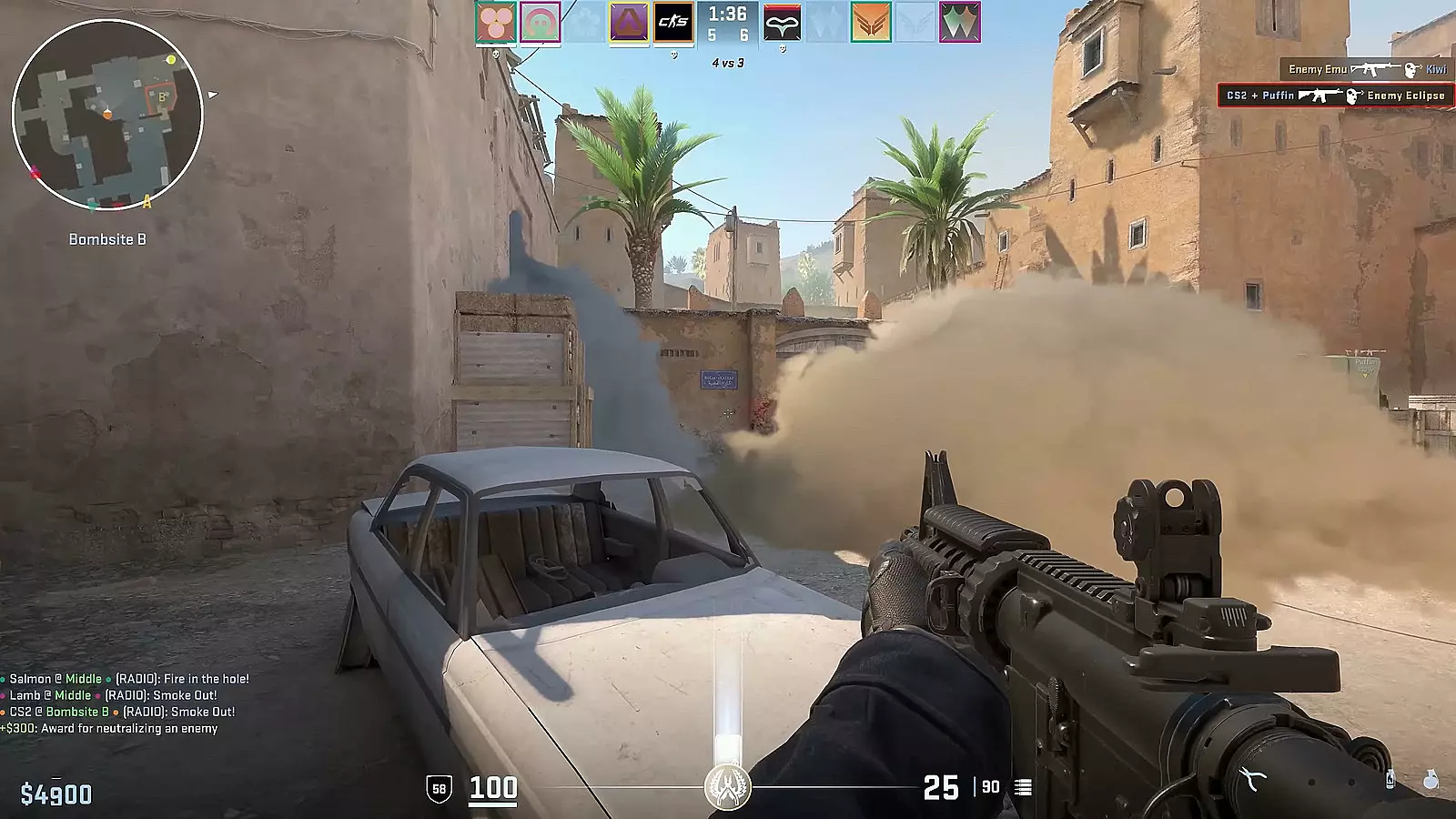
A particularly problematic visual artifact occurs when high-explosive grenades disperse smoke particles, creating an unintended camouflage effect that dramatically obscures player models within the smoke cloud. This technical anomaly, while officially classified as a bug, persists in the current game build without developer resolution. The visual interference can reduce enemy visibility by up to 70% in certain scenarios, creating frustrating gameplay moments.
Fortunately, dedicated community researchers have identified the root cause and optimal countermeasures. Reddit analyst CinnaCS conducted extensive smoke behavior analysis, discovering that specific graphics settings combinations can mitigate this visual obstruction. Based on these empirical findings, we strongly recommend implementing the following configuration:
- Boost Player Contrast — Enabled
- Ambient Occlusion — Disabled
Boost Player Contrast functions by enhancing the luminance difference between player models and environmental elements, making character silhouettes more distinct against smoke backgrounds. This setting specifically targets the rendering pipeline to prioritize enemy visibility, though it may introduce minor visual artifacts on certain maps. The performance cost typically ranges from 3-8% FPS reduction depending on your hardware configuration.
Ambient Occlusion creates realistic shadowing by simulating how light interacts with nearby surfaces, but in smoke-filled environments this generates additional visual noise that obscures player outlines. Disabling this feature removes these interfering shadows, significantly improving target acquisition through smoke screens. For maximum effectiveness, consider adjusting these complementary settings:
- Multisampling Anti-Aliasing: 4x MSAA for balance
- Texture Filtering Mode: Anisotropic 4x
- Shader Detail: Medium to High
Many players mistakenly enable both settings, creating conflicting visual effects that cancel each other’s benefits. The optimal configuration requires selective enabling based on specific gameplay scenarios, much like strategic class selection in BF6 where different roles demand specialized loadouts.
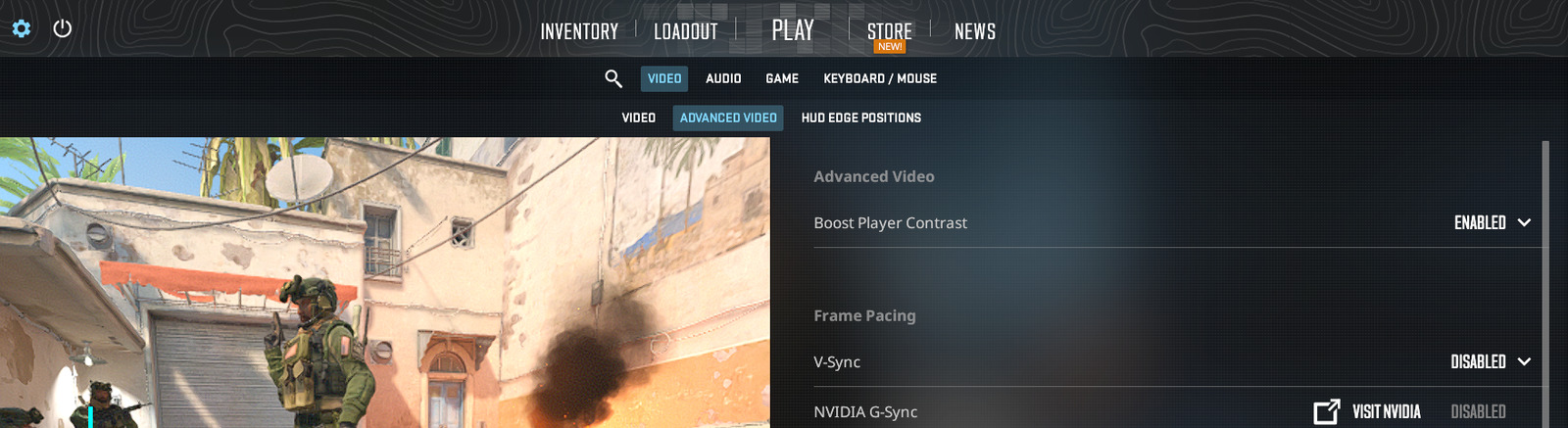
Implementing these visibility enhancements requires precise navigation through CS2’s settings menu. Launch the game and access options either by pressing Escape or clicking the gear icon in the interface. Select the Video tab, then proceed to Advanced Video settings where you’ll find the critical options.
Locate Boost Player Contrast at the top section of the advanced menu and set it to “Enabled” for immediate improvement. Scroll further down to locate Ambient Occlusion in the lighting effects category and configure it as “Disabled” to complete the optimization. The entire configuration process typically takes 2-3 minutes for first-time setup.
Remember that graphics settings often involve performance tradeoffs, similar to weapon customization decisions in our BF6 weapons guide, where attachments affect handling characteristics. These specific visibility settings may reduce frame rates by 5-15% on lower-end systems, so balance visual advantage with smooth gameplay based on your hardware capabilities.
Beyond graphical settings, develop complementary spotting techniques to maximize your smoke penetration effectiveness. Focus on detecting movement patterns within smoke clouds rather than trying to identify static targets. Enemy players typically reveal their position through subtle motion, making movement detection your primary identification method.
Utilize audio cues extensively—footstep sounds, weapon switches, and grenade pulls provide critical intelligence about enemy positions within obscured areas. Coordinate with teammates using clear callouts to triangulate enemy locations, similar to strategic positioning in Battlefield 6 gameplay where squad coordination determines engagement outcomes.
Avoid common mistakes like staring directly at smoke clouds, which reduces overall situational awareness. Instead, use peripheral vision and quick glances while maintaining focus on likely engagement angles. Practice these techniques in community servers before implementing them in competitive matches to build muscle memory and confidence.
Action Checklist
- Launch CS2 and navigate to Video > Advanced Video settings
- Enable Boost Player Contrast and disable Ambient Occlusion
- Test configuration in deathmatch or community servers
- Monitor FPS impact and adjust other settings if necessary
- Practice movement detection and audio cue utilization in smoke scenarios
No reproduction without permission:Game Guides » How to better see in smokes in CS2. Best settings to spot players in smokes in CS2 Master CS2 smoke visibility with optimal settings, performance tips, and advanced spotting techniques