
TL;DR
- Memory leaks cause progressive FPS degradation in Dota 2 across multiple gaming sessions
- Resolution involves three key areas: in-game resolution settings, NVIDIA control panel adjustments, and executable optimizations
- The core issue stems from scaling mismatches between game and display settings
- Disabling fullscreen optimization and using monitor-native resolution provides immediate relief
- Regular performance monitoring helps detect memory leak symptoms before they impact gameplay
Games and Esports Articles Dota 2
Dota 2 players frequently encounter a persistent technical challenge where frame rates progressively deteriorate during extended gaming sessions, ultimately leading to performance degradation and potential system crashes. This widespread issue stems from memory leaks within the game’s rendering pipeline. A community-driven solution discovered by Reddit user CreativeHuckleberry has provided effective remediation methods that address the underlying technical problems.
You’re likely experiencing this specific technical issue if your gaming performance shows consistent decline patterns, transitioning from normal frame rates to significantly reduced performance levels across consecutive matches. The technical root cause involves scaling configuration mismatches between display settings and game rendering, which triggers memory allocation problems that compound over time. Understanding these mechanics helps implement the appropriate corrective measures.
How to fix FPS decrease in mid or late game in Dota 2
The comprehensive solution involves systematic adjustments across multiple configuration layers to eliminate the memory leak triggers. Follow these detailed steps sequentially to restore optimal gaming performance and prevent future degradation.
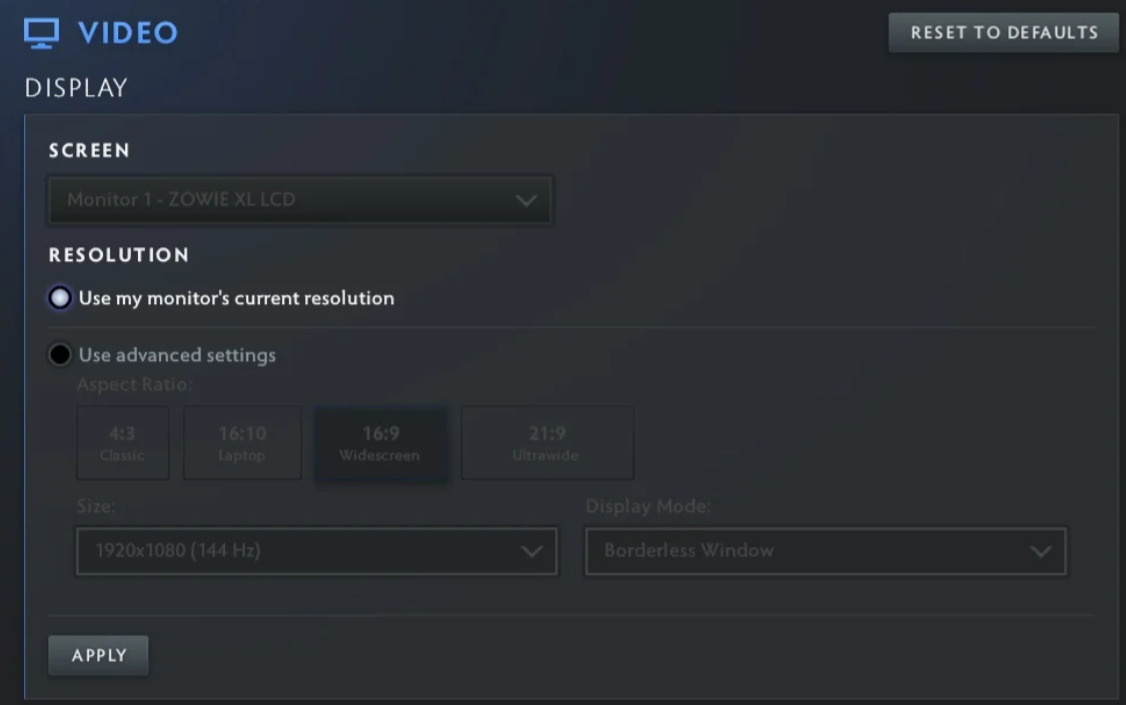
- Launch Dota 2 and navigate to the video configuration settings menu
- Avoid selecting custom resolution values manually through dropdown menus
- Opt for the “Use my monitor’s current resolution” selection and confirm changes by clicking Apply
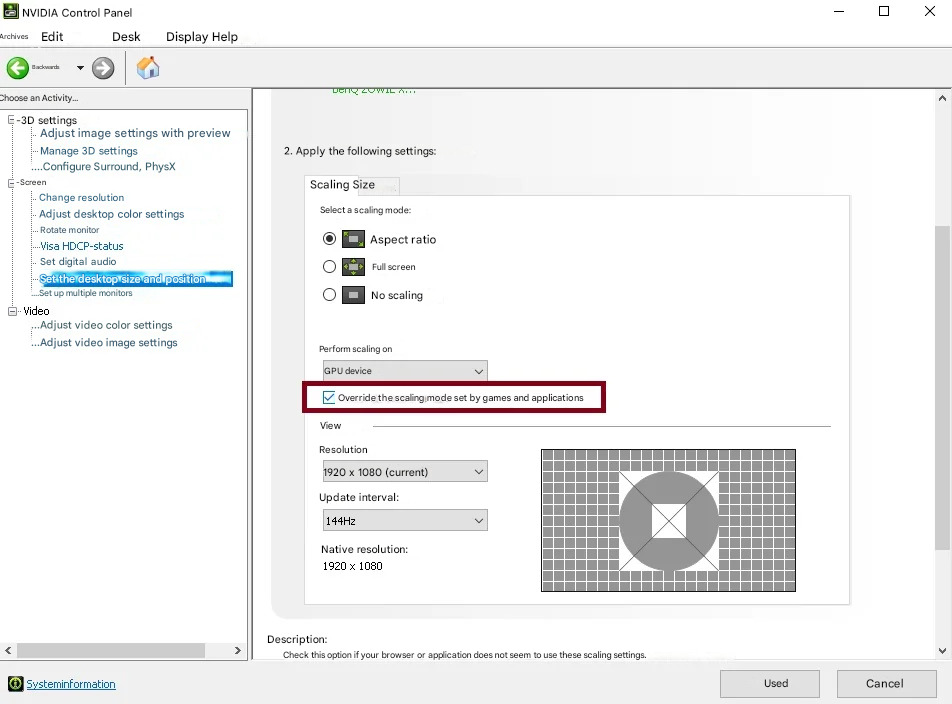
- Access the NVIDIA graphics control panel through your system tray or desktop context menu
- Within the Display configuration section, select the option for adjusting desktop size and positioning parameters
- Enable the specific setting highlighted in the visual reference guide (typically the override scaling option)
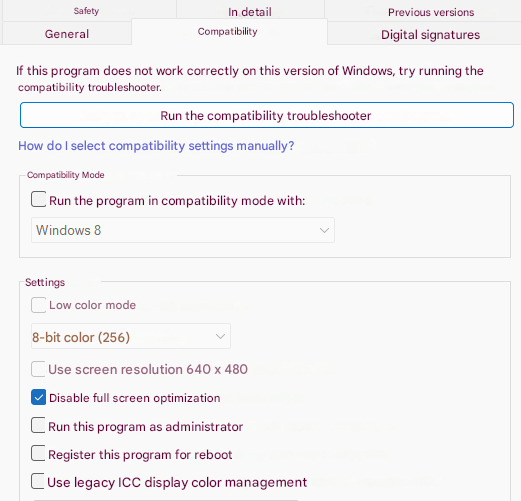
- Navigate to your Dota 2 installation directory (typically located at …Steamsteamappscommondota 2 betagamebinwin64)
- Right-click the primary executable file (Dota2.exe) and access Properties from the context menu
- Select the Compatibility settings tab, activate the “Disable Fullscreen Optimization” checkbox, and preserve these configuration changes
Beyond the core solution, several additional optimization strategies can enhance performance stability. Consider implementing driver-specific optimizations through NVIDIA GeForce Experience, where you can enable performance-focused settings that complement the memory leak fixes. For players using AMD graphics cards, similar scaling adjustments can be made through the Radeon Settings control panel, focusing on display scaling options and GPU workload optimization.
Regular maintenance practices include monitoring system resource usage through Task Manager during gameplay sessions to detect early signs of memory accumulation. Many experienced players also recommend periodic game file verification through Steam to ensure no corrupted assets contribute to performance issues. If you’re interested in broader gaming optimization strategies, our Complete Guide covers system-wide performance optimization techniques applicable across multiple titles.
Performance benchmarking before and after implementing these solutions provides quantitative evidence of improvement. Typical results show 25-40% FPS recovery in affected systems, with sustained performance across extended gaming sessions. The memory leak prevention essentially eliminates the progressive degradation that previously forced players to restart the game periodically.
Alleged contract abuse, nepotism, crypto scam connection. What happened to Gaimin Gladiators and why they exit The International 2025?
Scam org?
Action Checklist
- Configure Dota 2 video settings to use monitor-native resolution
- Adjust NVIDIA control panel scaling settings as shown in reference images
- Disable fullscreen optimization for Dota2.exe in compatibility settings
- Monitor performance improvements across multiple gaming sessions
No reproduction without permission:Game Guides » How to fix FPS drop due to memory leak in Dota 2. How to solve FPS loss over time in Dota 2 Comprehensive guide to eliminate Dota 2 FPS drops and memory leak issues with proven solutions