
TL;DR
- Activate cursor with Alt key on PC to reveal hidden food switching arrows
- Organize food inventory by stat type for quick combat access
- Use food buff stacking for maximum performance in challenging content
- Master mobile touch controls for efficient on-the-go consumption
- Avoid common UI navigation pitfalls that hinder food management efficiency
Games and Esports Articles
Tower of Fantasy represents Hotta Studio’s ambitious entry into the anime MMORPG landscape, delivering cross-platform accessibility across PC, iOS, and Android devices since its global debut on August 11. This shared universe enables seamless progression whether you’re gaming on desktop or mobile platforms.
The game immerses players in a visually stunning post-apocalyptic world filled with expansive exploration opportunities, intricate environmental puzzles, and dynamic combat systems blending both PvE and PvP elements. Character personalization extends beyond aesthetics to include deep gameplay customization, allowing for diverse build specializations and playstyle adaptations.
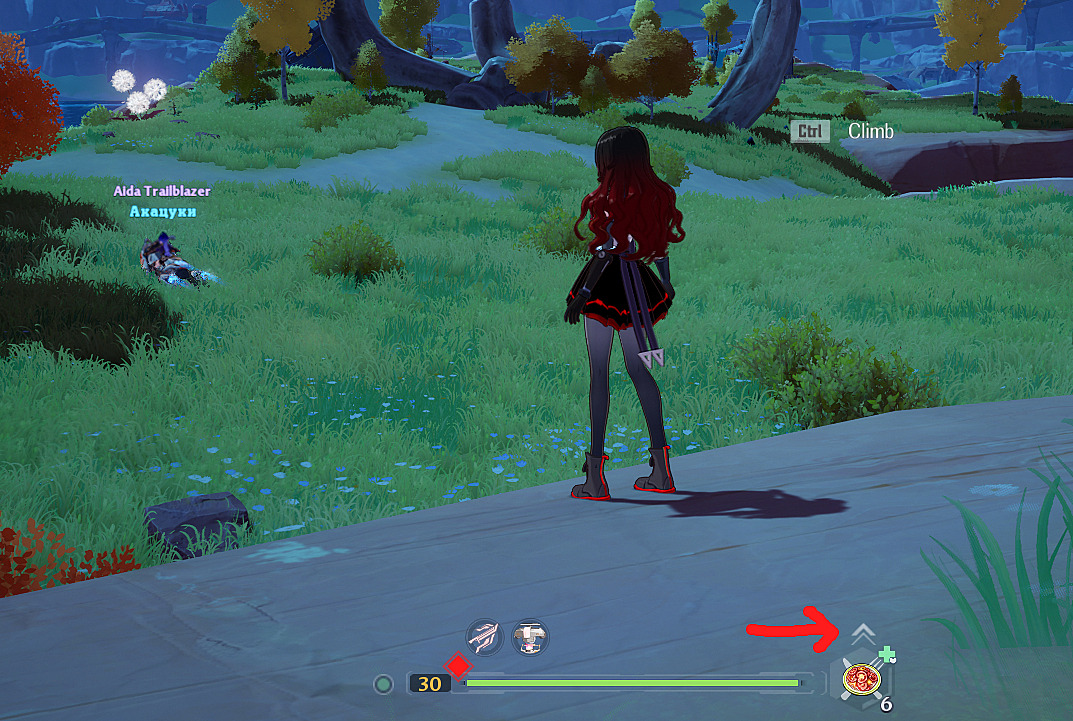
Navigating the user interface presents significant learning curves, particularly regarding consumable management. The designated food slot features subtle interactive elements that many players overlook initially, requiring specific input methods to access its full functionality and optimize character performance.
Mastering food item management begins with understanding platform-specific control schemes. On PC versions, you must first activate the cursor interface by holding the Alt key, which reveals previously hidden interactive elements including the crucial food selection arrow positioned above your currently equipped consumable.

Mobile users navigate this system through touch controls, requiring precise taps on the miniature arrow indicator adjacent to their active food item. This interface element often blends into the background, making initial discovery challenging for new adventurers.
Visual feedback confirms successful interaction, with the food selection menu appearing instantly. This menu displays all consumables currently in your inventory, organized by stat buff categories and potency levels for streamlined accessibility during combat situations.
Seasoned players optimize their food management through strategic inventory organization, categorizing consumables by primary stat enhancements—attack boosts, defense reinforcements, healing properties, and stamina recovery. This systematic approach ensures rapid access to situation-appropriate buffs during intense combat encounters.
Establishing quick-access food slots for different activity types significantly enhances gameplay efficiency. Create dedicated setups for exploration (stamina foods), boss battles (attack foods), and difficult content (defense foods) to maintain peak performance across all game modes.
Understanding food buff stacking mechanics provides competitive advantages in endgame content. While similar stat types don’t typically stack, complementary buffs from different food categories can create powerful synergistic effects that dramatically improve character capabilities.
Many players struggle with the initial cursor activation step, attempting to click the arrow without first enabling mouse input. Remember that on PC, the Alt key must be held continuously while navigating food selection menus for consistent interface responsiveness.
Inventory management pitfalls include carrying excessive quantities of low-tier consumables that clutter selection menus. Regularly purge ineffective foods and prioritize carrying higher-quality buff items that provide meaningful combat advantages.
Performance optimization involves timing food consumption around combat cycles rather than during active engagements. Consume buff foods during exploration phases or brief combat pauses to avoid wasting precious seconds in critical moments.
Action Checklist
- Practice cursor activation with Alt key on PC to master food menu access
- Organize inventory by creating food categories for different activity types
- Set up quick-access food slots for boss battles, exploration, and difficult content
- Experiment with food buff stacking to discover powerful stat combinations
No reproduction without permission:Game Guides » How to switch default food Tower of Fantasy. Change food ToF Master Tower of Fantasy's food system with expert UI navigation tips and optimization strategies