
TL;DR
- Use NVIDIA Control Panel to force V-Sync when in-game settings fail
- AMD users can trigger V-Sync through DLSS frame generation settings
- Screen tearing occurs when frame rates exceed monitor refresh rates
- Different V-Sync modes offer varying performance and input lag trade-offs
- Always restart the game after applying GPU driver-level changes
Games and Esports Articles
Many Atomic Heart enthusiasts encounter disruptive screen tearing that severely impacts gameplay immersion. This visual artifact manifests as horizontal lines splitting the screen during fast movements, caused by your GPU rendering frames faster than your monitor can display them. The technical root lies in frame rate and refresh rate synchronization failure.
What exacerbates this issue is a persistent bug within Atomic Heart’s video settings menu. The V-sync toggle either remains completely unresponsive or appears active but provides no actual functionality. This settings paralysis affects various hardware configurations, though the severity and workaround options differ significantly between GPU manufacturers.
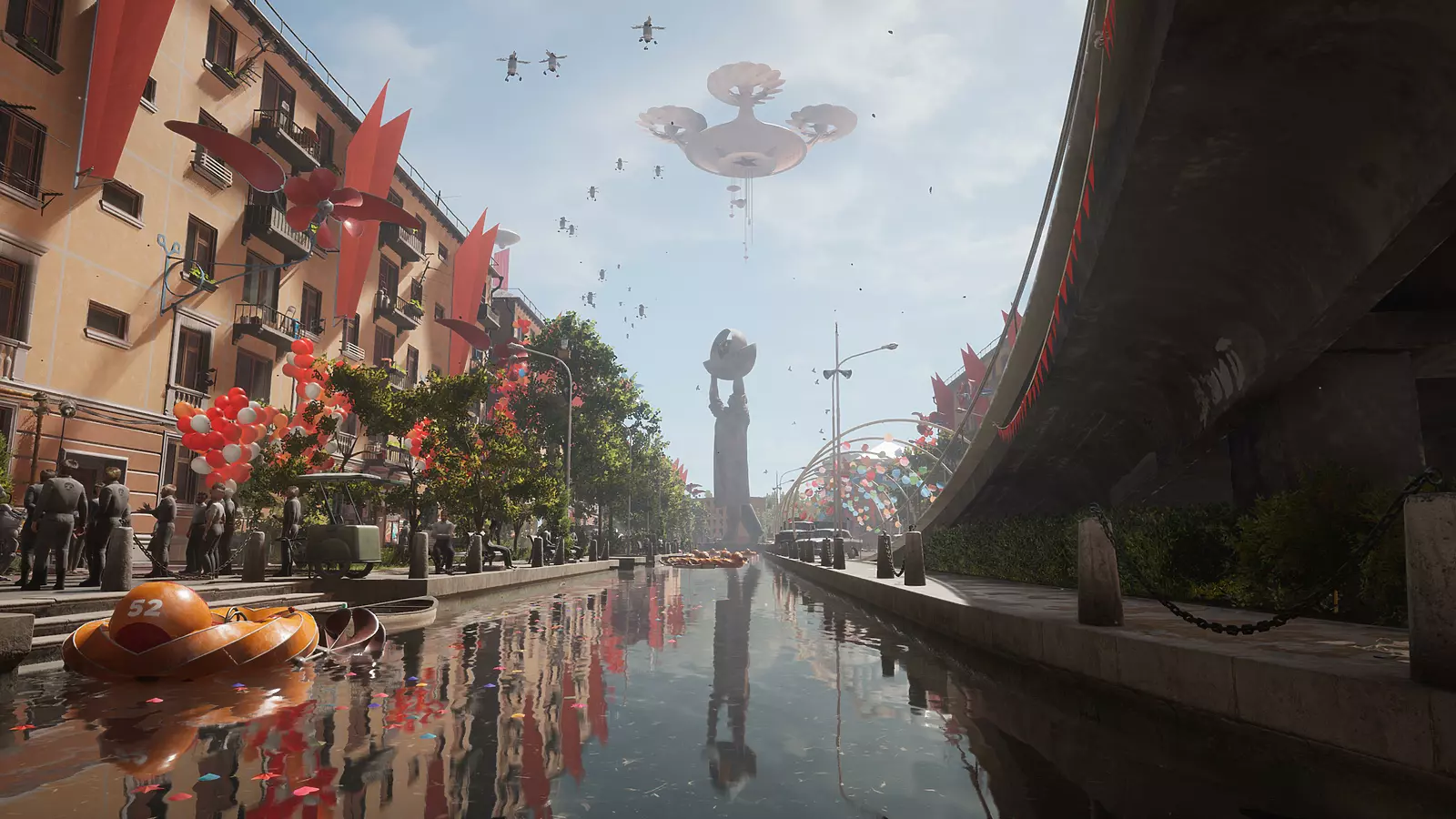
Screen tearing becomes particularly noticeable in fast-paced combat sequences and rapid camera movements. Without proper synchronization, your gaming experience suffers from visual fragmentation that can even affect targeting precision during critical encounters.
Fortunately, NVIDIA graphics card owners have a straightforward bypass solution through the NVIDIA Control Panel. This utility allows you to override game-specific settings at the driver level, effectively circumventing the broken in-game V-sync implementation.
- Access NVIDIA Control Panel via right-clicking desktop or system tray icon
- Navigate to 3D Settings section → Manage 3D Settings → Program Settings tab
- Locate Atomic Heart in the applications list; if absent, manually add using the “Add” button
- Scroll to Vertical Sync option and select “On” from the dropdown menu
- Completely restart the game to ensure changes take effect properly
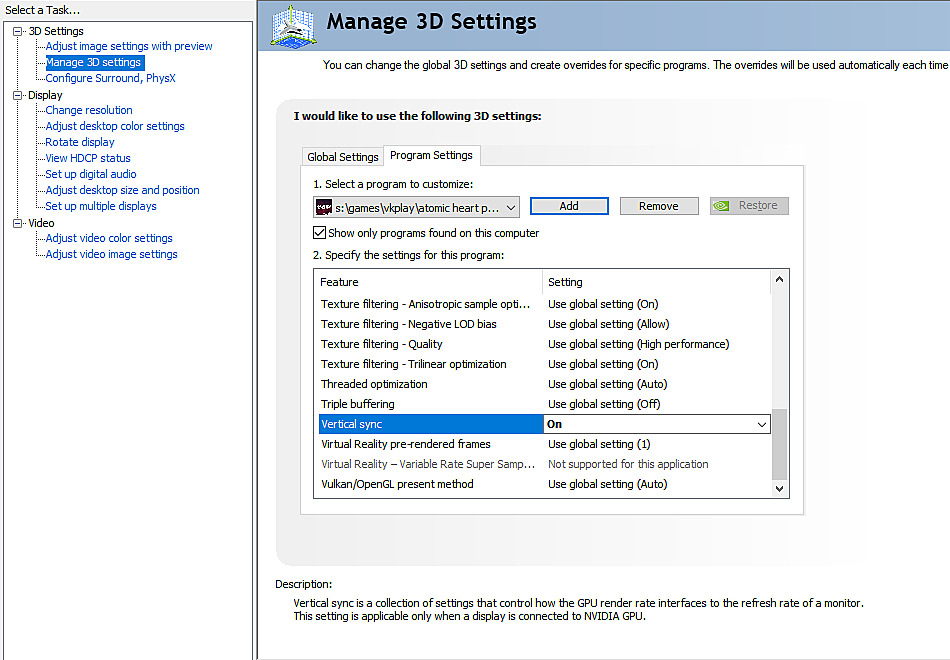
Beyond basic activation, NVIDIA provides multiple V-sync modes with distinct performance characteristics. The “Fast” option reduces input lag while preventing tearing, ideal for competitive gameplay. “Adaptive” synchronizes dynamically based on frame rate, while “Adaptive (half refresh rate)” caps frames at half your monitor’s maximum rate for extreme stability.
For optimal results, combine forced V-sync with appropriate frame rate caps. Unlimited frames can still cause micro-stuttering even with synchronization active. Consider using NVIDIA’s frame rate limiter or in-game caps when available for smoother performance.
AMD Radeon users face additional challenges since the AMD Software control panel cannot override Atomic Heart’s V-sync settings in the same manner. However, the community has discovered an ingenious workaround that leverages the game’s DLSS implementation.
- Access in-game settings menu and enable DLSS Frame Generation option
- Accept the mandatory game restart prompt when it appears
- Upon reloading, V-sync should now be active automatically
- The DLSS Frame Generation will disable itself on non-40 series cards while preserving V-sync
This method works because enabling DLSS Frame Generation triggers underlying engine changes that also activate the V-sync functionality. Even without compatible hardware, the setting toggle creates the necessary conditions for synchronization to engage.
Alternative approaches include using third-party frame rate limiting tools like RivaTuner Statistics Server or exploring AMD’s Enhanced Sync functionality. Some users report success with driver clean installations using Display Driver Uninstaller before reinstalling latest AMD Adrenalin software.
For persistent issues, investigate potential conflicts with other graphics enhancements or overlay software. Applications like Discord overlay, MSI Afterburner, or recording software can sometimes interfere with synchronization mechanisms.
Several common mistakes can undermine your V-sync troubleshooting efforts. Never attempt to modify game configuration files manually without understanding the consequences—this often creates additional issues. Avoid constantly toggling settings without proper restarts, as this can cause configuration corruption.
Monitor your system’s performance after implementing fixes. Ideal V-sync operation should eliminate tearing without introducing excessive input lag or significant frame rate drops. If you experience stuttering, experiment with different synchronization modes or consider upgrading your monitor to one with variable refresh rate technology.
For long-term prevention, keep your graphics drivers updated, particularly around game patches. Atomic Heart updates sometimes address underlying graphics issues, making driver compatibility crucial. Regularly check community forums for new workarounds as other players discover additional solutions.
Remember that optimal gaming performance often requires balancing multiple graphics settings. While V-sync addresses tearing, other options like shadow quality, anti-aliasing, and texture resolution also impact overall smoothness and visual quality.
Action Checklist
- Identify your GPU manufacturer and follow appropriate solution path
- NVIDIA users: Configure V-sync through Control Panel program settings
- AMD users: Activate DLSS Frame Generation trick with game restart
- Test different V-sync modes for optimal performance balance
- Monitor performance and adjust additional graphics settings as needed
No reproduction without permission:Game Guides » How to turn on V-sync in Atomic Heart. Screen tearing fix for V-sync video settings bug Comprehensive guide to fix Atomic Heart V-sync bugs and eliminate screen tearing with GPU-specific solutions