
TL;DR
- Avoid Xbox subscription page – use Microsoft account services instead
- Update country settings in Your Info tab before purchasing
- Configure both account and Windows system region settings
- Use international payment methods that match your region
- Clear browser cache and cookies when switching regions
Games and Esports Articles
International gamers frequently encounter frustrating region mismatch errors when attempting to purchase Xbox Game Pass from outside supported countries. The payment interface on Xbox platforms often defaults to United States territory without providing region selection options, creating significant barriers for global players. Understanding why these restrictions exist helps in developing effective workarounds.
Microsoft implements regional pricing and content licensing agreements that vary by country, which explains the technical limitations. Common error messages include “your store region needs to match your account region” and “can’t change region on this device” – both stemming from Microsoft’s digital rights management system. It’s important to note that while these solutions work technically, users should always comply with their local laws and Microsoft’s terms of service regarding regional purchases.
The most critical mistake players make is using the Xbox subscription portal, which automatically locks your region based on IP address detection and doesn’t permit manual adjustments. This platform employs geolocation protocols that override user preferences, making it unsuitable for international purchases.
Instead, navigate directly to Microsoft’s account management services page. For optimal results, follow this comprehensive procedure:
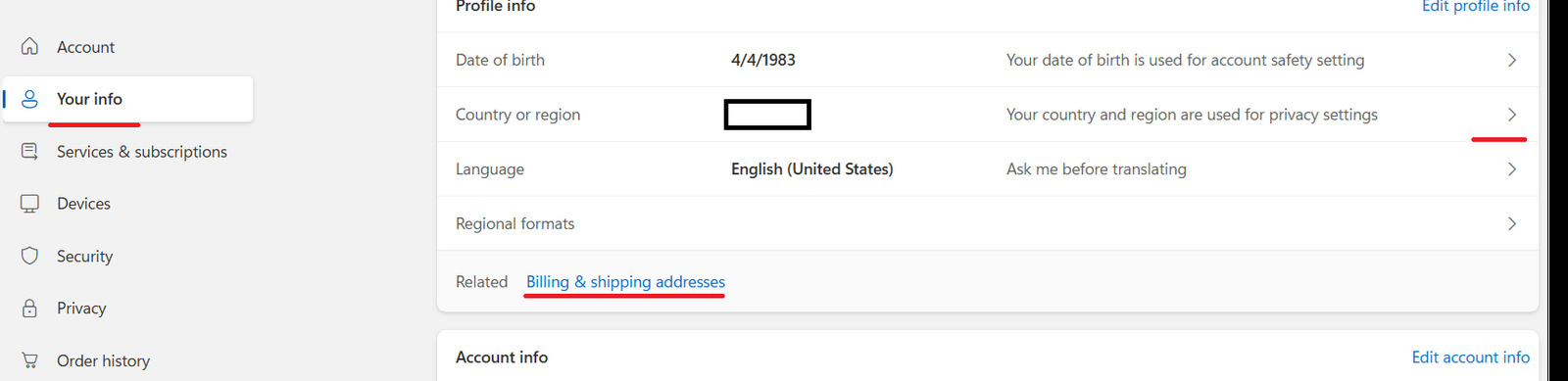
- Access the Your Info section within your Microsoft account dashboard
- Select the option to modify your country/region to match your current physical location (authentication may be required)
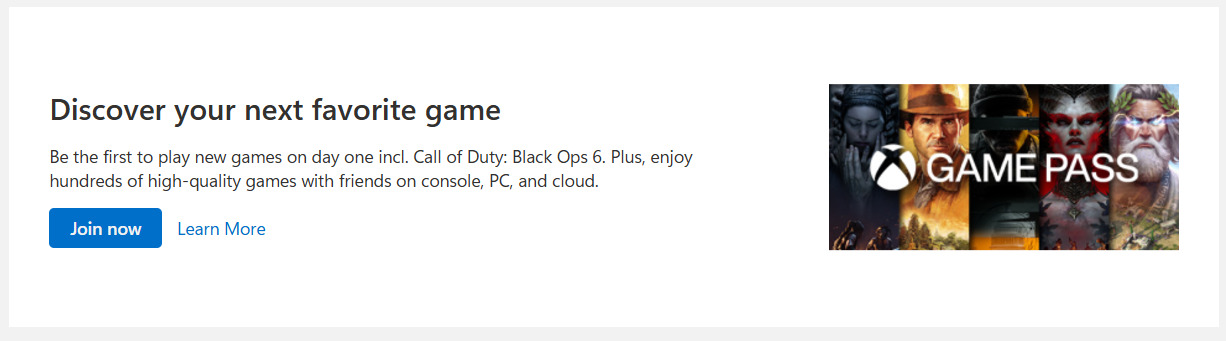
- Proceed to the Services and Subscriptions area, then activate Join Now adjacent to Game Pass offerings
- Consider adjusting your Windows operating system regional settings as supplementary verification (Windows key → Settings → Region configuration)
When the basic method fails, examine your payment instruments. Credit cards and PayPal accounts must originate from your selected region, as Microsoft cross-references billing addresses with account geography. International cards often trigger automatic region reassignment, undermining your configuration efforts.
While VPN services might seem like an obvious solution, they can violate Microsoft’s terms of service and potentially result in account restrictions. Instead, focus on legitimate region modification through proper account settings. For persistent issues, clear your browser cache and cookies completely before attempting the region change process, as stored location data can interfere with updates.
For gamers interested in optimizing their overall Battlefield 6 experience, our Complete Guide provides comprehensive strategies for mastering game mechanics across all regions.
How to play S.T.A.L.K.E.R. 2 on low-end/budget PC? Can I play Stalker 2 on weak PC?
Action Checklist
- Navigate to Microsoft account Your Info section and update country setting
- Access Services & Subscriptions tab instead of Xbox store page
- Verify Windows system region matches your account setting
- Ensure payment method billing address corresponds to selected region
No reproduction without permission:Game Guides » PC/Xbox Game Pass region lock/different country buying solution. Working fix for ‘can’t change region’ and ‘your store region need to match’ errors (2024) Complete guide to bypassing Xbox Game Pass region locks with proven solutions for international gamers