
TL;DR
- Windows 10 and 11 show minimal FPS differences in CS2, but HAGS significantly impacts frametimes
- Hardware Accelerated GPU Scheduling requires individual testing as performance varies by system configuration
- CPU-bound systems typically benefit from HAGS disabled, while GPU-limited setups may see improvements
- Always reboot after HAGS configuration changes and test in actual gameplay scenarios
- Monitor both average FPS and 1% lows for comprehensive performance assessment
Games and Esports Articles CS 2
Community researcher Thour conducted comprehensive performance evaluations across different operating systems to determine optimal CS2 gaming conditions. The investigation involved running identical benchmark sequences on Windows 10 before upgrading to Windows 11, creating direct performance comparisons under controlled conditions. Additionally, Thour examined the influence of Hardware Accelerated Graphics Scheduler (HAGS) technology on both frame rates and frametime consistency, with detailed findings shared via Twitter on November 16.
This systematic approach provides valuable insights for competitive players seeking every possible advantage. Understanding how operating system features interact with game performance can mean the difference between winning and losing critical engagements.
Thour’s extensive testing revealed remarkably similar performance characteristics between Windows 10 and Windows 11 when running Counter-Strike 2. Both operating systems delivered comparable frame rates in identical gaming scenarios, suggesting that CS2’s engine optimizes well across Microsoft’s recent OS versions. However, the critical differentiator emerged when examining frametime consistency rather than raw FPS numbers.
The research demonstrated that Hardware Accelerated GPU Scheduling implementation produced noticeable frametime variations on both platforms. Frametimes—the time intervals between consecutive frames—directly affect perceived smoothness and input responsiveness, crucial elements for competitive first-person shooter gameplay. You can explore detailed frametime analysis and their performance implications here.
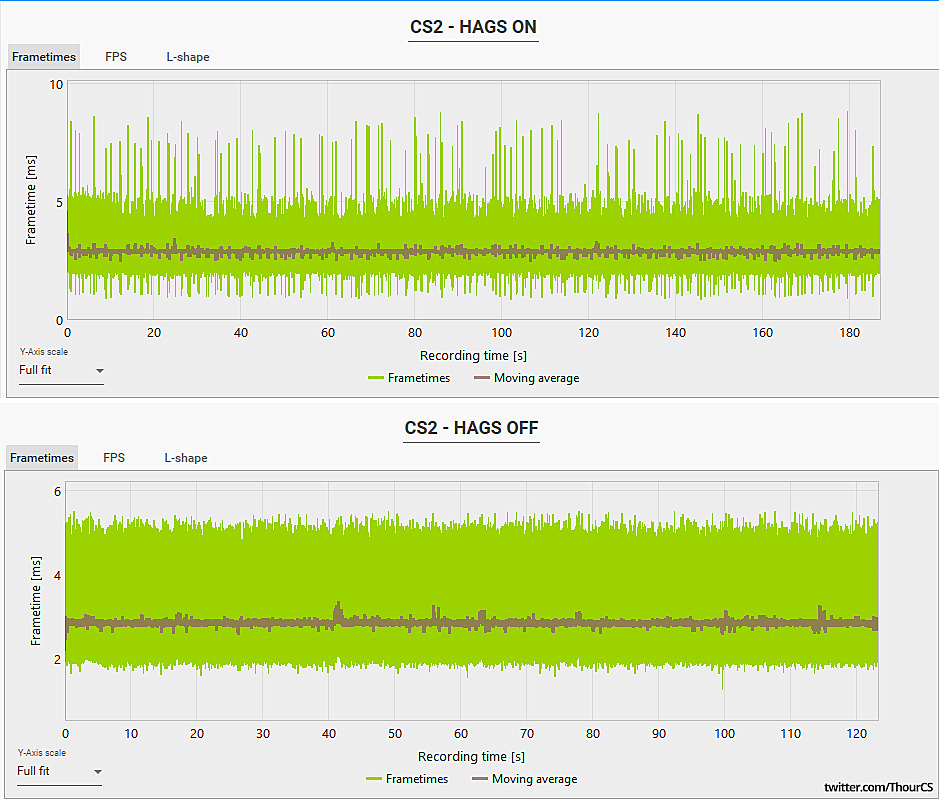
Avoid rushing to disable HAGS based solely on initial findings, as community feedback revealed contradictory results across different hardware configurations. Performance outcomes appear heavily dependent on individual system specifications, particularly the balance between processor and graphics card capabilities.
The optimal HAGS configuration typically correlates with your system’s primary performance limitation. CPU-bound systems (where the processor restricts performance) often benefit from HAGS disabled, reducing scheduling overhead. Conversely, GPU-limited configurations (where the graphics card is the bottleneck) may experience improved performance with HAGS enabled, as it allows better parallel processing of rendering tasks.
Advanced players should monitor both average FPS and 1% low framerates to assess real-world performance impact. The 1% low metric indicates worst-case scenario performance during intensive gameplay moments when smooth performance matters most.
Microsoft disables Hardware Accelerated GPU Scheduling by default in both Windows 10 and 11 installations. Follow this comprehensive procedure to modify HAGS settings for performance testing:
- Initiate by right-clicking on your desktop background
- Navigate to Display settings → Graphics configuration menu
- Select “Change default graphics settings” option
- Locate the Hardware-accelerated GPU scheduling toggle at the top of the interface
- Enable or disable based on your system’s performance characteristics
- Complete the process by rebooting your computer to apply changes
For optimal results, test each configuration in actual match conditions rather than relying solely on benchmark tools. Real gameplay introduces variables like enemy encounters, smoke grenades, and multiple player models that significantly impact performance differently than synthetic tests.
Beyond HAGS configuration, several additional optimizations can enhance CS2 performance on both Windows 10 and 11. Ensure your graphics drivers are updated regularly, as both NVIDIA and AMD frequently release game-specific optimizations. Consider adjusting power management settings to prefer maximum performance in both Windows and GPU control panels.
Common configuration mistakes include forgetting to reboot after changes, testing in unrealistic scenarios, and neglecting background application management. Discord overlays, recording software, and system monitoring tools can significantly impact performance during competitive matches.
For comprehensive system optimization, explore our Complete Guide for additional gaming performance enhancements that apply across multiple titles.
Performance tuning should always prioritize consistency over peak numbers. A stable 300 FPS with minimal frametime variance typically provides better gameplay experience than fluctuating between 400-500 FPS with occasional stutters during critical moments.
Action Checklist
- Benchmark CS2 performance with HAGS both enabled and disabled
- Identify whether your system is CPU-bound or GPU-limited using monitoring tools
- Configure optimal HAGS setting based on performance testing results
- Test configuration in actual competitive matches rather than just benchmarks
- Monitor 1% low framerates during gameplay for consistency assessment
No reproduction without permission:Game Guides » CS2 difference between Windows 10 and Windows 11. How HAGS affects FPS in CS2 Expert analysis of CS2 performance across Windows versions and HAGS optimization strategies for competitive gaming