
TL;DR
- CS2 decal clearing removes visual clutter but works client-side only
- Console command ‘r_cleardecals’ eliminates blood and bullet hole distractions
- Key binding automates the process for instant visual clarity during matches
- Current beta limitations may affect functionality until full implementation
- Strategic timing and proper binding enhance competitive gameplay performance
Games and Esports Articles CS 2
Intense firefights in Counter-Strike 2 generate substantial visual noise that can compromise your tactical awareness. The crimson blood splatters coating surfaces frequently conceal enemy snipers in key sightlines, while bullet impact markings may divert attention from critical environmental details. Previous CS:GO iterations utilized the “clear decals” console command for immediate cleanup. Valve developers are expected to integrate similar functionality within CS2’s framework. Our comprehensive guide provides current implementation methods and will receive ongoing updates as new features deploy.
Critical Update (September 18): map-clearing key bindings currently remain non-functional within Counter-Strike 2’s beta build. Although the console command exists in the codebase, it produces no visible effects currently.
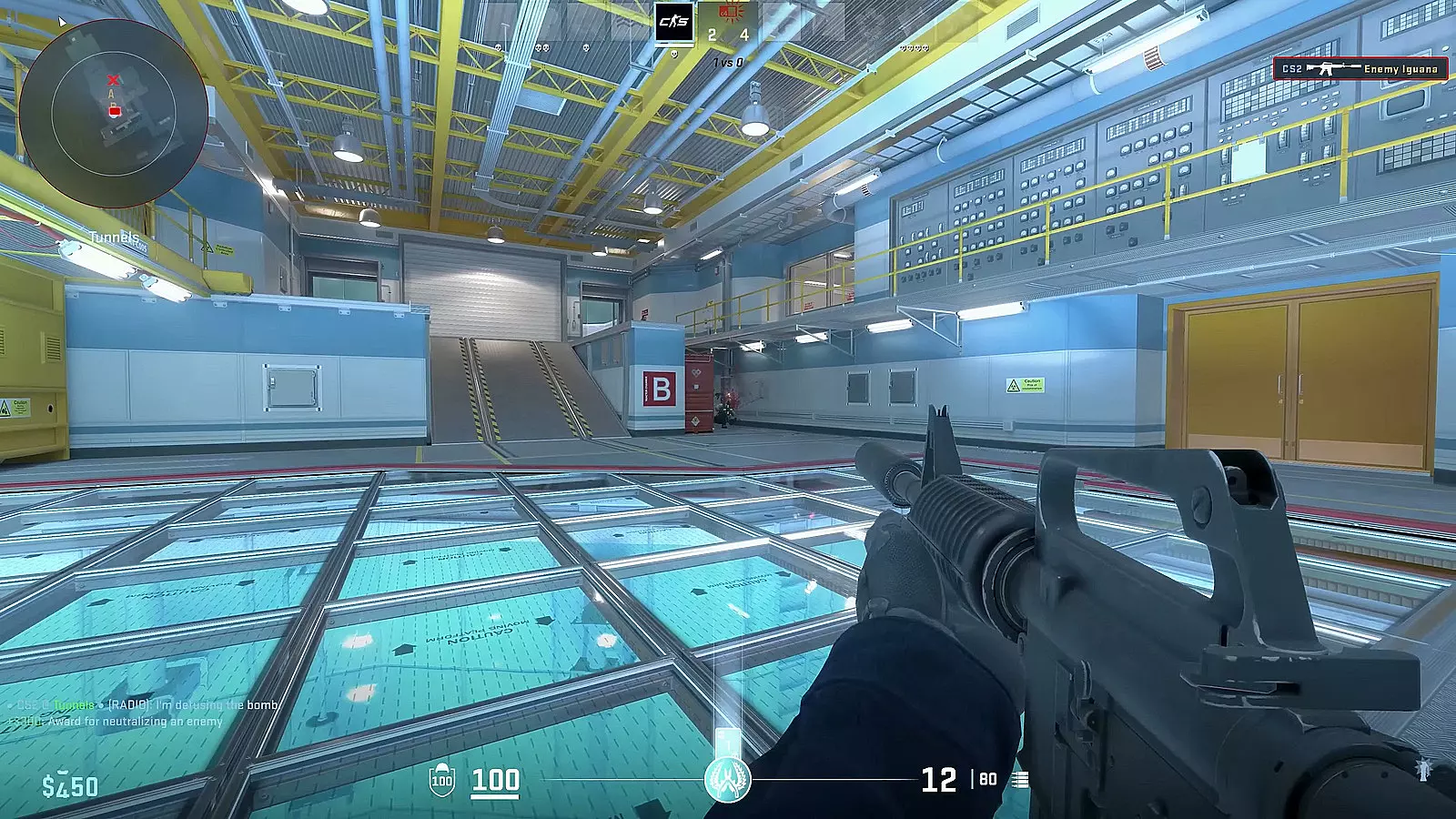
Understanding the technical scope is crucial: decal elimination operates exclusively on your local client. These visual elements will vanish from your display only, while opponents continue observing the standard environmental effects throughout the match.
- Activate the developer console by pressing the “~” key (If unavailable, navigate through Esc → Settings → Game menu, then enable Developer Console option)
- Input the command r_cleardecals precisely as shown
- Execute by pressing Enter key to initiate the cleanup process
Pro players recommend clearing decals during natural gameplay pauses—between round transitions, while repositioning, or when securing controlled map areas. This prevents visual distraction during critical engagement moments and maintains optimal situational awareness. For comprehensive gameplay enhancement strategies, explore our Complete Guide to competitive optimization.
Repeatedly typing console commands during matches creates unnecessary mechanical overhead and distraction. Binding the functionality to a dedicated key provides instantaneous access when visual clarity becomes critical. This automation separates casual players from competitively focused individuals who optimize every aspect of their gameplay.
- Access the developer console interface
- Enter the binding syntax: bind “Your Key” “r_cleardecals”
- Confirm execution by pressing Enter to save the configuration
Optimal key selection should prioritize easily accessible but non-conflicting buttons—consider mouse side buttons, function keys, or unused keyboard positions. Avoid binding to keys essential for movement or weapon control to prevent disruptive misclicks. For weapon-specific optimizations, our Weapons Unlock guide complements these settings.
Professional competitors integrate decal management into their fundamental gameplay rhythm rather than treating it as a reactive measure. The most effective practitioners clear visual clutter during predictable downtime moments: after securing bomb sites, between engagement rotations, or while holding defensive angles with limited visual stimulus.
Common implementation errors include binding to frequently used movement keys, creating config file conflicts, or selecting keys with significant input latency. Always test new bindings in offline practice sessions before implementing them in competitive matches. Understanding proper Class Guide selections can further enhance your tactical approach.
Advanced users should consider creating separate bind profiles for different map types or competitive formats. Some players prefer binding decal clearing to their reload action for automatic cleanup during natural pauses, though this requires careful scripting to avoid interference with core gameplay mechanics.
How to do jumpthrow bind in CS2. How to throw grenades with single key bind in CS2
Here’s how to do it
Action Checklist
- Enable developer console through game settings menu
- Practice manual decal clearing using ‘r_cleardecals’ command
- Select optimal key binding location avoiding movement conflicts
- Implement and test binding in offline practice session
- Integrate decal clearing into natural gameplay rhythm and timing
No reproduction without permission:Game Guides » How to clear map from blood and bulletholes in CS2? How to clear decals in Counter-Strike 2 Master CS2 visual clarity with decal clearing techniques, key binding strategies, and competitive optimization tips