
TL;DR
- Use Settings menu and Steam overlay to identify current server location and ping
- Adjust Max Acceptable Matchmaking Ping to control server selection range
- Disable VPNs and accelerators when troubleshooting connection problems
- Enable console and capture diagnostic data for developer bug reports
- Implement network optimizations to reduce latency and improve gameplay experience
Games and Esports Articles CS 2
The October 13 update fundamentally changed how players interact with Counter-Strike 2’s server infrastructure by introducing transparent server location visibility. This critical quality-of-life improvement empowers gamers to monitor connection quality in real-time and make informed decisions about match participation. Valve’s decision to implement this feature came directly from community feedback about routing inconsistencies that occasionally placed players on geographically distant servers, creating frustrating latency disparities. Game developer Fletcher Dunn spearheaded this initiative through a comprehensive Reddit thread designed to address persistent networking concerns.
Understanding server infrastructure begins with recognizing that CS2 operates on a global network of dedicated game servers strategically positioned across major geographical regions. Each server location serves specific territories, with ping times directly correlating to physical distance from the server. The term ping refers to the round-trip time data takes between your computer and the game server, measured in milliseconds (ms). Lower ping values indicate faster connections, which translate to more responsive gameplay and competitive advantages.
How to see your game’s server and get better ping in CS2?
- Navigate to Settings → Game tab and locate the “Max Acceptable Matchmaking Ping” slider. Beneath this control, you’ll discover a comprehensive list of available servers with their corresponding ping values. This pre-match assessment tool allows strategic server selection by setting ping thresholds that automatically filter out high-latency options. Adjusting this value upward expands your server pool but may introduce latency, while lowering it restricts matches to nearby servers only.
- During any matchmaking game session, activate the Steam overlay using Shift+Tab. In the upper-right interface corner, the system displays your current game server’s physical location and identifies which network relay facilitates your connection. This real-time monitoring provides immediate feedback about server performance.
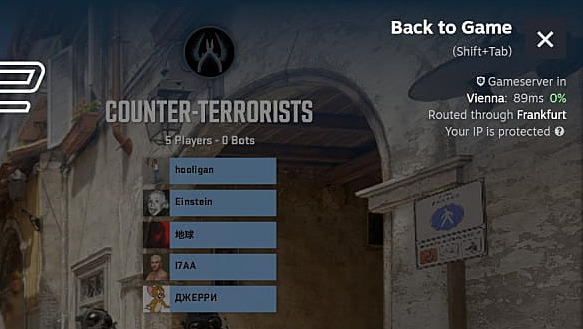
For optimal results, establish your baseline ping by testing during different times of day since internet traffic patterns significantly affect connection quality. Peak hours (evenings and weekends) often produce higher ping due to network congestion. Consider creating a server preference list based on consistent performance metrics rather than simply choosing the geographically closest option, as routing paths can vary dramatically between internet service providers.
CS2 devs add reference to “Michael Jackson peek” bug on Twitter
Beyond basic server location checking, competitive players should implement systematic ping optimization techniques. Start by conducting network diagnostics using tools like WinMTR or PingPlotter to identify specific hops causing latency spikes. Many gamers overlook that wireless connections typically add 10-25ms compared to wired Ethernet, making cable connections essential for serious gameplay. Additionally, ensure no bandwidth-intensive applications (streaming services, downloads, cloud backups) run concurrently with CS2 sessions.
Advanced optimization involves understanding that CS2’s matchmaking system prioritizes ping but also considers factors like skill balance and queue times. Setting your Max Acceptable Matchmaking Ping between 40-80ms typically provides the best balance between connection quality and reasonable matchmaking times. Players in regions with sparse server coverage might need to accept higher thresholds, but should monitor for consistent packet loss indicators that suggest unstable connections.
For those struggling with persistently high ping despite geographical proximity to servers, investigate routing issues with your ISP. Sometimes simply rebooting your modem and router can clear temporary routing table issues that cause suboptimal paths to game servers.
What to do if I think I have a wrong/non-ideal server?
While Valve’s October update resolved most systematic routing miscalculations, occasional bugs may still misdirect players to non-ideal servers. When you suspect incorrect server assignment, begin with comprehensive troubleshooting before reporting issues. Document the problem systematically: note the server location displayed, your actual geographical location, measured ping, and any packet loss indicators. This documentation becomes invaluable when communicating with developers.
Fletcher Dunn’s detailed Reddit guidance outlines a methodical approach to problem identification and reporting:
- First, completely disable any VPN services, gaming accelerators, or network optimization software. Additionally, remove all launch options and configuration file modifications, running CS2 in its default state to isolate whether the issue stems from third-party interference. This foundational step resolves many perceived server problems.
- Ensure the developer console is activated through Settings → Game menu. The console provides critical diagnostic information unavailable through standard interface elements.
- Press the tilde key (~) to access the console interface during gameplay.
- Initiate matchmaking for a casual game mode, as these typically have more flexible server selection than competitive modes.
- Within moments, the console will generate technical output containing server connection details, routing information, and performance metrics.
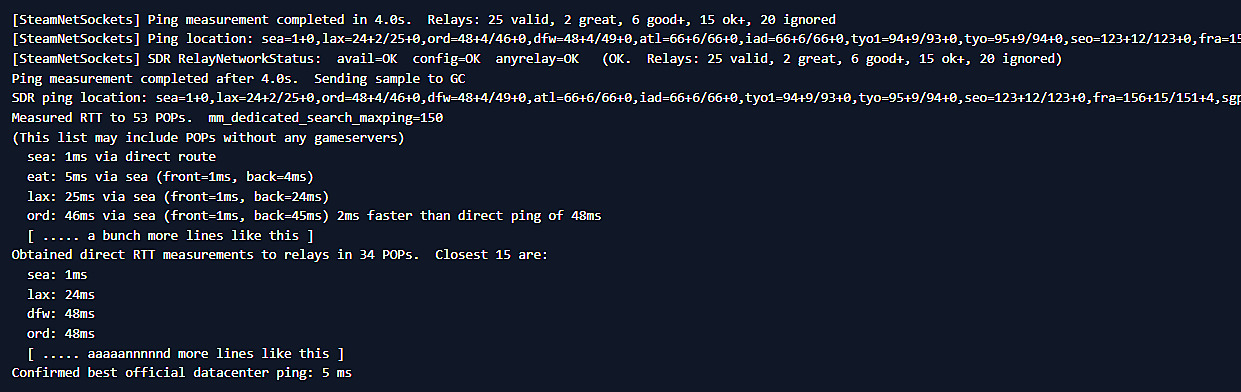
Dunn specifically requested that players submit feedback using clear text formats and easily readable platforms like Pastebin rather than screenshots. The official CS2 development team email for technical issues and server problems is cs2team@valvesoftware.com. When emailing, include your console output, geographical location, ISP information, and detailed description of the problematic behavior. This comprehensive approach significantly accelerates bug identification and resolution timelines.
What are promotional matches in CS2 and how they work? Why do you get so little Elo points after some games in CS2 Premier Mode?
Slow down, grinder.
Action Checklist
- Check current server location via Settings menu and note ping values for all available servers
- Set Max Acceptable Matchmaking Ping between 40-80ms based on your region
- Monitor in-game server performance using Steam overlay during matches
- Disable VPNs/accelerators and test connection in vanilla game state
- Enable console and capture connection data when troubleshooting persistent issues
- Submit detailed bug reports to cs2team@valvesoftware.com with console outputs
No reproduction without permission:Game Guides » How to find server location in Counter-Strike 2? How to get best ping in CS2 Master CS2 server location detection and ping optimization with expert troubleshooting techniques