
TL;DR
- Verify game file integrity across all platforms to eliminate corruption issues
- Disable FSR Frame Generation which frequently causes stability problems
- Update graphics drivers and limit frame rates to prevent GPU overload
- Clear temporary files and disable overlays that interfere with game performance
- Systematically test each solution to identify the specific cause of your crashes
Games and Esports Articles
The initial release of S.T.A.L.K.E.R. 2: Heart of Chornobyl encountered significant technical challenges that the development team has been working to resolve. While patches 1.01 and 1.02 successfully addressed numerous launch issues, they introduced new stability concerns for certain hardware configurations. Many players report experiencing sudden crashes, particularly the frustrating ‘0x00000’ memory access errors that can occur during intense gameplay moments or area transitions.
Understanding the root causes is essential for effective troubleshooting. The massive 150GB installation size means file corruption can easily occur during updates, while advanced graphics features like FSR 3 Frame Generation may conflict with specific GPU drivers. This comprehensive guide provides tested solutions that have proven effective for resolving these post-patch instability problems.
Before diving into complex solutions, start with these fundamental system checks that resolve the majority of crash scenarios. File verification should be your first troubleshooting step, as incomplete downloads or corrupted installation files are among the most common causes of post-patch instability.
Comprehensive File Verification Procedures
Game file corruption frequently occurs during large patch installations. The verification process scans all game files and replaces any damaged or missing components, which often resolves crash-to-desktop issues immediately.
- On Steam: Navigate to your Library → Right-click S.T.A.L.K.E.R. 2 → Select Properties → Access Installed Files tab → Click “Verify integrity of game files”
- On GoG: Locate STALKER 2 in your library → Click the customization button → Choose Manage installation → Select Verify / Repair option
- On Epic Store: Open your Library → Click the three dots icon next to the game → Select Manage → Choose Verify to scan for issues
- On Game Pass: Right-click the game in your library → Choose Manage → Select Files → Run the verification tool
Driver Management Best Practices
Outdated or corrupted graphics drivers are a leading cause of game crashes. Always download drivers directly from NVIDIA, AMD, or Intel websites rather than relying on Windows Update. Perform a clean installation when updating to remove any residual driver components that might cause conflicts.
Addressing FSR Frame Generation Issues
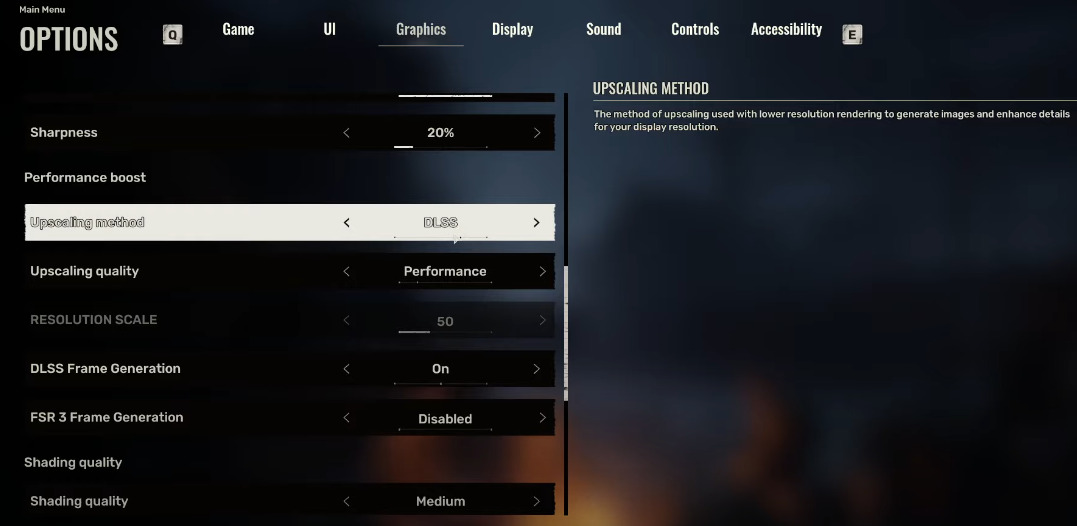
Many players have reported that disabling AMD FSR 3 Frame Generation significantly improves stability. This feature, while boosting frame rates, can introduce timing issues that lead to crashes, especially on NVIDIA graphics cards. Navigate to the game’s graphics settings and ensure FSR 3 Frame Generation is set to “Disabled” rather than “Balanced” or “Performance.”
Frame Rate Limiting Techniques
Uncapped frame rates can overwhelm your system during graphically intensive scenes. Implementing a frame rate cap through your graphics control panel prevents these overload scenarios.
- Access the NVIDIA Control Panel from your desktop
- Click Manage 3D Settings → Navigate to Program Settings
- Select S.T.A.L.K.E.R. 2 from the application drop-down menu
- Enable the “Max Frame Rate” option and set a reasonable limit (try 60-90 FPS initially)
Overlay Conflict Resolution
Multiple applications running overlays simultaneously—such as Discord, Steam, and NVIDIA ShadowPlay—can create conflicts that crash the game. Disable all unnecessary overlays and test stability.
- In Steam: Library → Right-click STALKER 2 → Properties → General → Uncheck “Enable the Steam Overlay while in-game”
System Temporary File Management
Accumulated temporary files from previous gaming sessions can interfere with new patch installations. Clearing these files forces the game to regenerate fresh configuration data.
- Press Windows Key + R to open the Run dialog
- Type %temp% exactly as shown and press Enter
- Select all files in the temporary folder (Ctrl + A) and delete them
Best artifact detectors in S.T.A.L.K.E.R. 2. Where to find all detectors in Stalker 2
Mod Compatibility Assessment
If you’ve installed any mods—even cosmetic ones—they may conflict with the new patch changes. Completely uninstall all mods and test the base game stability before gradually reintroducing them. Many mods require updates to remain compatible with post-patch game versions.
Performance Monitoring and Testing
After applying each fix, monitor your system’s performance. Use tools like MSI Afterburner to track temperatures, frame times, and GPU utilization. Sudden spikes in any of these metrics can indicate the underlying cause of your crashes.
How to play S.T.A.L.K.E.R. 2 on low-end/budget PC? Can I play Stalker 2 on weak PC?
Action Checklist
- Verify game file integrity through your platform’s verification tool
- Update graphics drivers with clean installation from manufacturer website
- Disable FSR 3 Frame Generation in graphics settings
- Set frame rate limit through NVIDIA Control Panel to 60-90 FPS
- Clear temporary files using Windows Run dialog and %temp% command
- Disable all overlays including Steam, Discord, and recording software
No reproduction without permission:Game Guides » How to fix S.T.A.L.K.E.R. 2 crashes after patches 1.01 and 1.02. How to fix ‘0x00000’ errors in Stalker 2 Comprehensive troubleshooting guide for S.T.A.L.K.E.R. 2 crashes after recent patches with proven solutions