
TL;DR
- Lower post-processing to Low in video settings for immediate motion blur reduction
- Access Engine.ini file in AppData folder for complete visual effects control
- Add specific console commands to disable motion blur, depth of field, and chromatic aberration
- Backup original file before editing to easily restore default settings
- Monitor performance impact as disabling effects may increase frame rates
Games and Esports Articles
Many Vampire: The Masquerade — Bloodlines 2 enthusiasts find the combat visuals excessively distracting due to aggressive post-processing effects. When engaging in close-quarters combat, players frequently experience intense motion blur combined with chromatic aberration, creating visual chaos that can obscure enemy movements and environmental details. This comprehensive guide provides multiple methods to achieve cleaner, more precise visual presentation for gamers who prefer tactical clarity over cinematic flair.
Motion blur simulates camera movement during fast actions, while chromatic aberration creates color separation at screen edges—effects that some players find immersion-breaking rather than enhancing. Understanding how to control these settings can significantly improve your combat effectiveness and overall gaming satisfaction.
The fastest approach involves adjusting the post-processing setting within the game’s video options menu. Navigate to Settings > Video and locate the Post-Processing option at the bottom of the list. Setting this to Low will immediately reduce motion blur intensity without requiring file edits. This method works well for players seeking moderate improvement without technical complexity.
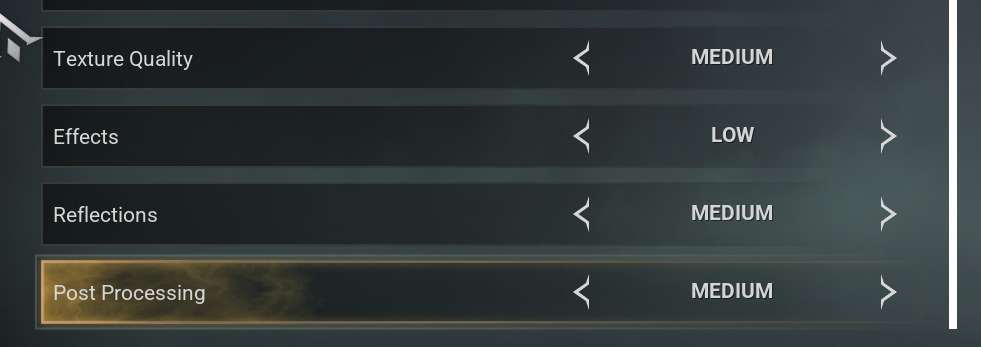
However, this setting only partially addresses the issue. For complete elimination of all motion blur, depth of field effects, and chromatic aberration, the advanced configuration method delivers more comprehensive results. Many players combine both approaches for optimal visual clarity.
For complete control over visual effects, access the game’s configuration files. Navigate to AppDataLocalBloodlines2SteamSavedConfigWindowsEngine.ini using any text editor like Notepad++ or Visual Studio Code. Before making changes, create a backup copy of the original file to ensure you can restore default settings if needed.
Scroll to the bottom of the Engine.ini file and insert these configuration lines to disable all problematic visual effects:
- [SystemSettings]
- r.MotionBlur.Max=0
- r.MotionBlurQuality=0
- r.DefaultFeature.MotionBlur=False
- r.DepthOfFieldQuality=0
- r.DefaultFeature.DepthOfField=False
- r.SceneColorFringeQuality=0
- r.DefaultFeature.SceneColorFringe=False

These commands specifically target Unreal Engine’s rendering system, which powers Vampire: The Masquerade Bloodlines 2. The “Quality=0” parameters disable effect rendering, while “DefaultFeature=False” commands prevent automatic re-enabling during gameplay transitions.
Community feedback confirms this configuration method effectively eliminates unwanted visual effects while maintaining game stability. Some players report modest frame rate improvements since the GPU no longer processes these computationally expensive post-effects. However, visual purists should note that completely disabling these features may make certain cinematic sequences appear less polished.
To revert any specific setting or restore defaults, simply change the values back to their original states: replace 0 with 1 and “False” with “True”. If settings don’t apply after editing, ensure the file isn’t set to read-only and that you’ve saved changes before launching the game.
For players who want granular control, you can selectively enable certain effects by modifying individual lines. For example, keeping depth of field for dialogue scenes while disabling motion blur for combat requires only partial implementation of the provided configuration.
What is best clan to start with in VtM Bloodlines 2. Guide to Vampire the Masquerade clan choice, their abilities, and playstyles
Where do you belong?
Action Checklist
- Try in-game post-processing setting first – set to Low in Video options
- Locate Engine.ini file in AppData/Local/Bloodlines2/Steam/Saved/Config/Windows/
- Backup original file before making any changes
- Add the six configuration lines to disable specific visual effects
- Test changes in combat scenarios and adjust individual settings as needed
No reproduction without permission:Game Guides » How to remove motion blur and chromatic aberration in Vampire: The Masquerade Bloodlines 2. Working fix for blur and DoF issues in VTMB2 Complete guide to disabling motion blur, depth of field, and chromatic aberration in VTMB2 for clearer combat visuals