
TL;DR
- s1mple uses 1280×960 resolution with 4:3 aspect ratio for optimal target visibility
- Most graphics settings are set to Low to maximize FPS and reduce visual clutter
- Global Shadow quality remains crucial for spotting opponents in CS2’s enhanced lighting system
- 360Hz refresh rate provides competitive edge but requires high-end hardware
- Proper brightness and display settings enhance visual clarity and reaction time
Professional Gaming Configuration Guides CS 2 Optimization
NAVI legendary AWPer Oleksandr “s1mple” Kostyliev recently showcased his complete CS2 setup during a live stream session. For players aspiring to elevate their gameplay using professional methodologies, we’ve compiled his comprehensive in-game configuration preferences. These settings reflect years of competitive experience and optimization for peak performance.
Understanding why top professionals choose specific configurations provides valuable insights into game mechanics and competitive advantages. Many aspiring players overlook the strategic reasoning behind pro settings, focusing only on copying numbers without understanding the underlying principles that drive these choices.
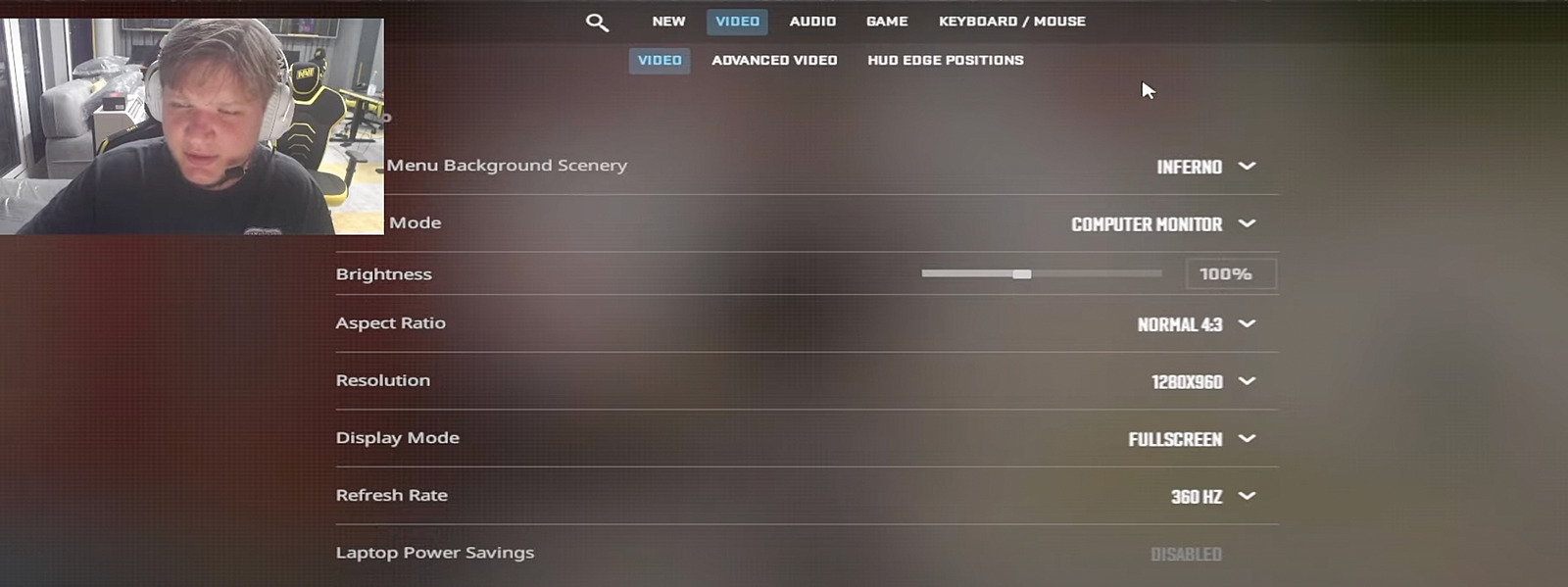
The Ukrainian superstar consistently employs full-screen mode with a display resolution of 1280×960 pixels, maintaining the classic 4:3 aspect ratio that many professional players prefer. This configuration stretches character models slightly wider, making targets easier to track and hit during intense firefights. His brightness setting remains at 100% to ensure optimal visibility in darker areas of maps.
While s1mple utilizes a 360Hz refresh rate monitor, this high-performance specification may exceed the capabilities of many gaming setups. Players should select the maximum refresh rate their specific monitor hardware supports, as even 144Hz provides significant advantages over standard 60Hz displays.
Where to find FPS counter in CS2? How to activate FPS command in console or Steam overlay in CS2
Monitor your game’s performance metrics effectively
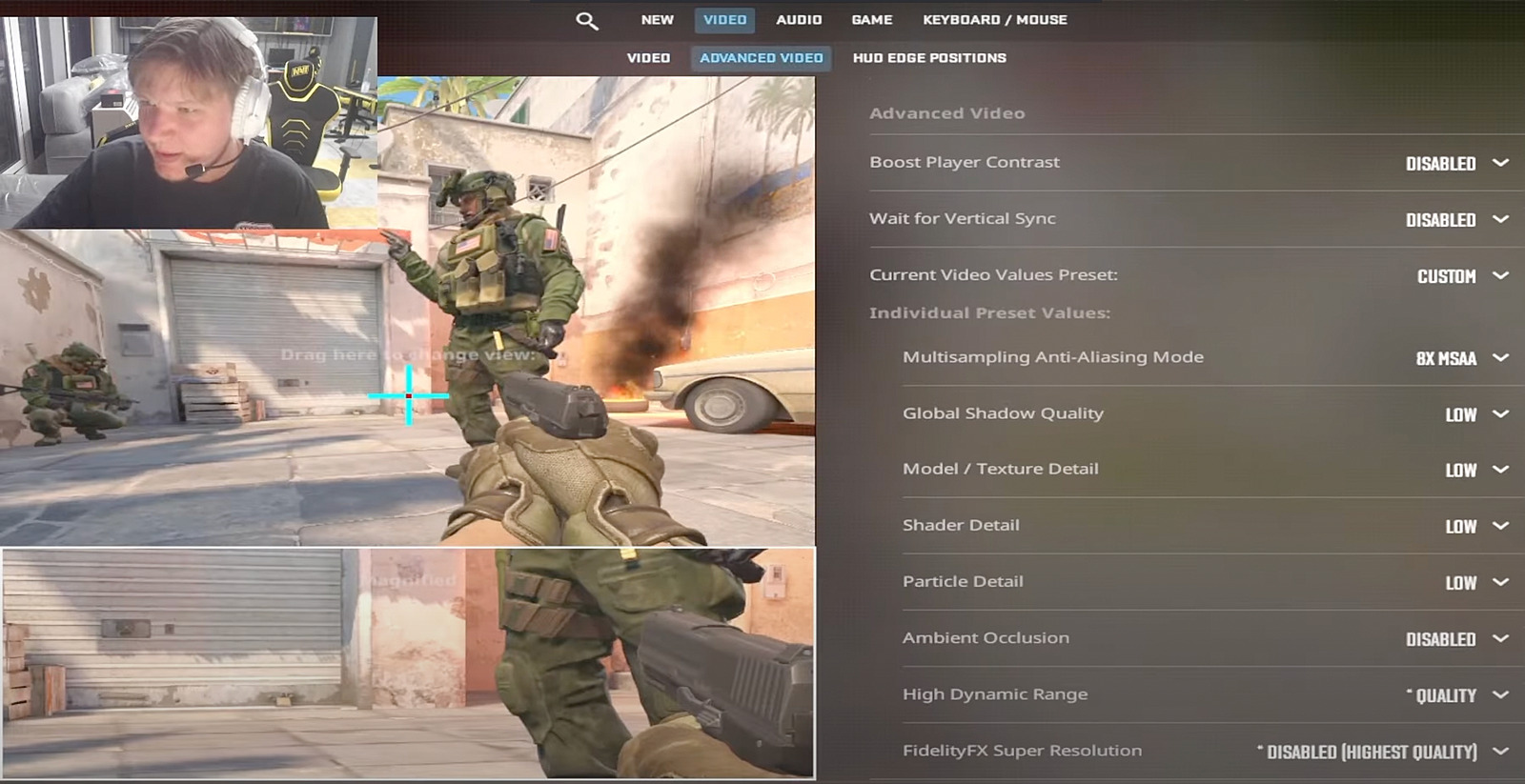
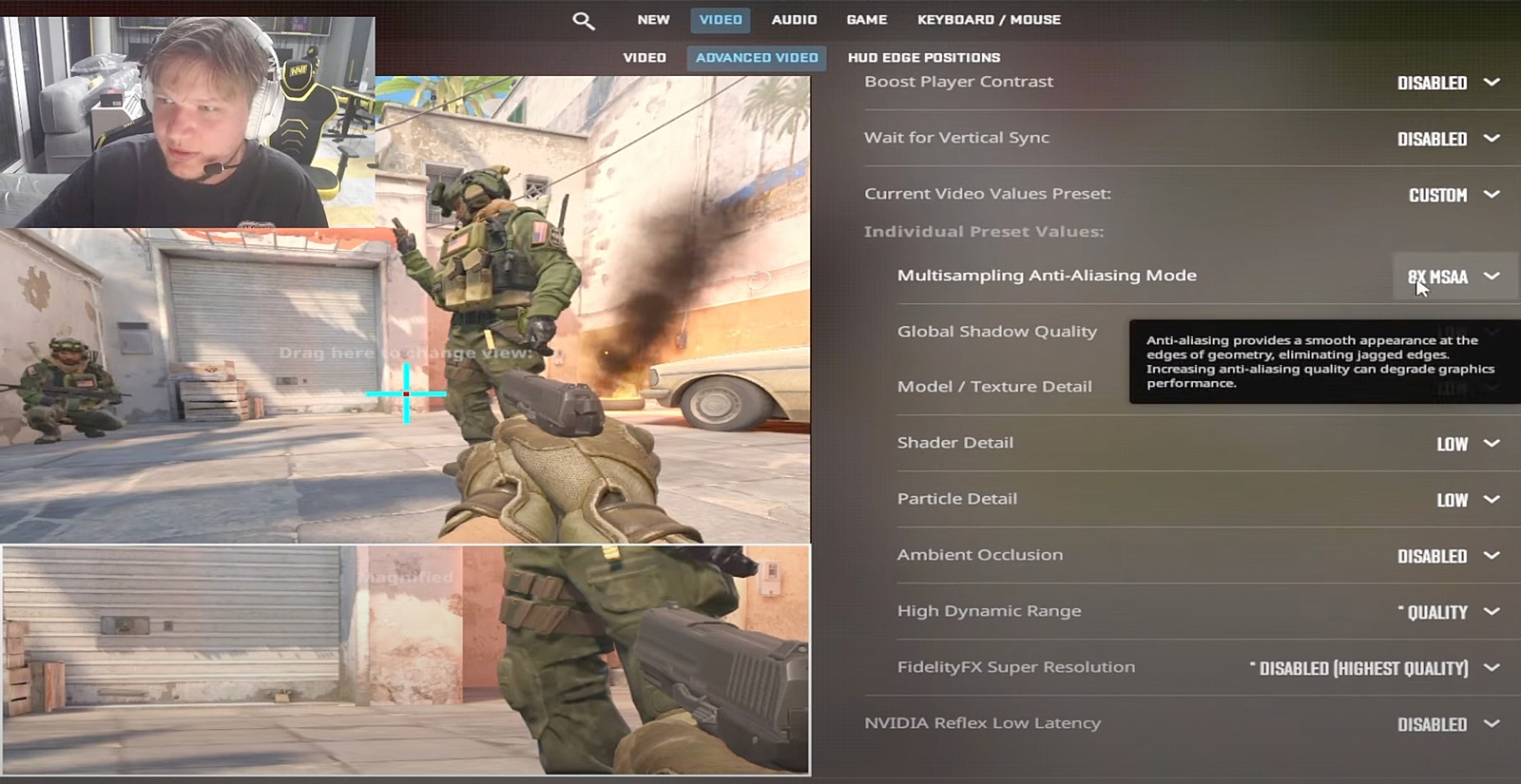
s1mple operates with an NVIDIA graphics card and configures the majority of CS2’s graphics parameters to Low settings. This strategic reduction in visual fidelity prioritizes frame rate consistency and minimizes potential distractions during competitive matches. Complete configuration details are visible in the screenshots provided below.
It’s crucial to recognize that Global Shadow quality and other visual parameters significantly impact enemy visibility, particularly in CS2 with its enhanced shadow rendering system and realistic reflection mechanics. Many intermediate players make the mistake of maximizing all graphics settings, unaware that this can actually hinder competitive performance by introducing visual noise and reducing frame stability.
CS2 will have 12 rounds per half, a global leaderboard, and a separate skill group for each map. All those are added to beta
Beyond software settings, hardware configuration plays an equally vital role in competitive performance. The combination of appropriate resolution, optimized graphics parameters, and high refresh rate displays creates the foundation for responsive gameplay. Players should regularly monitor their FPS counter to ensure consistent performance above 200 FPS for the smoothest experience.
For those using similar NVIDIA graphics cards, additional optimization through the NVIDIA Control Panel can provide further performance enhancements. Key settings include setting Power Management Mode to “Prefer Maximum Performance” and enabling Low Latency Mode to reduce input delay. These hardware-level adjustments complement the in-game configuration for maximum competitive advantage.
Remember that while professional settings provide an excellent starting point, individual adjustments based on your specific hardware capabilities and personal preferences may yield even better results. The ultimate goal is finding the perfect balance between visual clarity and performance stability for your specific setup.
Action Checklist
- Set display resolution to 1280×960 with 4:3 aspect ratio
- Configure graphics settings to Low with attention to Global Shadow quality
- Enable FPS counter through console commands or Steam overlay
- Adjust NVIDIA Control Panel settings for maximum performance and low latency
- Test and fine-tune brightness and refresh rate settings for your specific monitor
No reproduction without permission:Game Guides » S1mple’s settings in CS2 in 2023: Preferences, graphics, resolution, and video card Master CS2 with s1mple's competitive settings, optimization strategies, and performance-enhancing techniques