
TL;DR
- Disabling cl_showfps console command can boost FPS by 15-20% based on community testing
- Steam’s built-in FPS counter provides alternative monitoring with minimal performance impact
- Third-party software like MSI Afterburner offers detailed performance metrics without game integration
- Optimize both in-game and system settings for maximum competitive performance gains
- Balance visual feedback needs with raw performance for optimal gaming experience
Games and Esports Articles CS 2
Counter-Strike 2 represents a significant technical leap from its predecessor, implementing Source 2 engine enhancements that increase graphical fidelity and computational requirements. Many competitive players actively pursue new optimization strategies to maintain high frame rates essential for responsive gameplay. The standard approach for monitoring performance involves using variations of the console command cl_showfps, but recent discoveries indicate this monitoring method itself consumes valuable system resources.
Performance monitoring tools, while useful for diagnostics, can paradoxically reduce the very metrics they’re designed to measure. This performance overhead becomes particularly noticeable on mid-range systems where every frame counts toward competitive responsiveness.
Industry insider Vlad “harumi” Radvilovich documented this performance anomaly through extensive testing, identifying a consistent 15-20% frame rate reduction when cl_showfps remains active. Multiple community members have validated these findings across different hardware configurations, though individual results may vary based on system specifications. To deactivate the performance-draining counter, execute cl_showfps 0 through the developer console interface.
The performance impact stems from how the command continuously samples and renders frame rate data, creating additional CPU overhead that competes with game processing cycles. For players seeking maximum performance, this represents one of the easiest optimizations available.
Gabe Follower explains how to remove date and time info from CS2 screen
For players requiring frame rate visibility, third-party monitoring applications provide alternative solutions without integrated performance penalties. Alternatively, Steam’s integrated counter offers built-in functionality, though it operates through the Steam overlay system which introduces its own minor performance considerations. Most Counter-Strike enthusiasts maintain overlay functionality regardless for marketplace access and social features.
- Launch Steam client and navigate to Steam → Settings menu
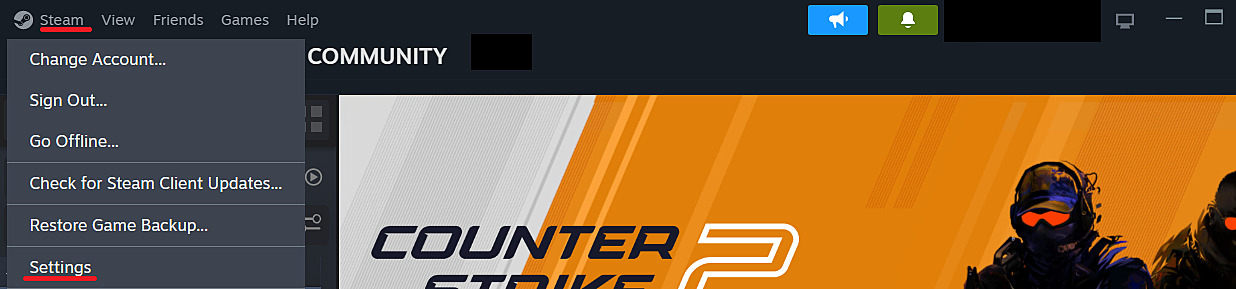
- Access the In-Game settings section
- Locate the In-game FPS counter option, defaulted to disabled status
- From the positioning dropdown, select your preferred on-screen display location
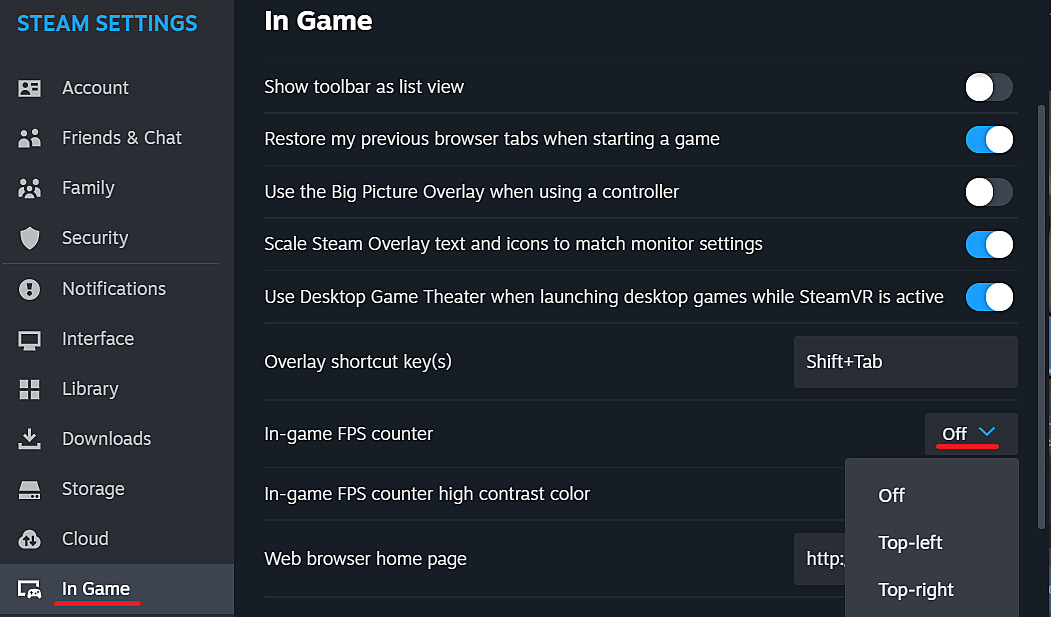
The Steam overlay FPS counter typically consumes fewer resources than console command alternatives while providing similar functionality. Players should experiment with both disabled and enabled states to determine the optimal balance for their specific system configuration and playstyle requirements.
Beyond FPS counter management, comprehensive system optimization can yield additional performance improvements. Consider adjusting video settings like shadow quality, texture filtering, and anti-aliasing based on your hardware capabilities. Many competitive players prioritize frame rate consistency over visual fidelity for optimal gameplay responsiveness.
Valve changes weekly skin/case drops in CS2. How to get Care Package rewards in CS2
We have a choice now.
For players seeking comprehensive performance insights, tools like MSI Afterburner with RivaTuner Statistics Server offer detailed monitoring capabilities without direct game engine integration. These external solutions provide frame time analysis, hardware utilization metrics, and temperature monitoring alongside basic FPS display.
Action Checklist
- Disable cl_showfps console command by typing ‘cl_showfps 0’
- Configure Steam overlay FPS counter through Settings → In-Game menu
- Test performance with both counters disabled to establish baseline frame rates
- Evaluate third-party monitoring software for advanced performance metrics
- Adjust in-game video settings based on performance testing results
No reproduction without permission:Game Guides » Tip: How to increase FPS with console command in CS2 Boost CS2 performance by disabling FPS counters and optimizing Steam overlay settings for competitive advantage