
TL;DR
- Enable developer console in CS2 settings to access advanced FPS monitoring commands
- Use cl_showfps 1 console command for real-time performance tracking during matches
- Configure Steam overlay FPS counter as backup but disable overlay for maximum performance
- Monitor FPS fluctuations to identify hardware bottlenecks and optimize game settings
- Combine multiple monitoring methods for comprehensive performance analysis
Games and Esports Articles CS 2
Frame rate performance serves as the fundamental metric for any competitive first-person shooter, and Counter-Strike 2 maintains this critical standard. Competitive players consistently monitor their frames per second to detect potential performance bottlenecks that could compromise gameplay fluidity. For newcomers to the tactical shooter genre, mastering FPS monitoring provides essential visibility into system performance during intense firefights.
Maintaining stable high frame rates directly impacts aiming precision and reaction times during clutch situations. Professional esports athletes typically target 300+ FPS to ensure minimal input latency and smooth visual feedback. Understanding your system’s capabilities helps optimize settings for competitive matches where every millisecond counts.
How to use FPS command in the console of CS2
Activating the developer console requires navigating to CS2’s Settings interface and selecting the Game configuration tab. The initial option listed enables Developer Console access – toggle this setting to Yes confirmation. Once enabled, access the console instantly by tapping the tilde key (~) during active gameplay sessions.
Enter the command cl_showfps 1 followed by Enter key execution. The performance overlay immediately displays in your screen’s upper-left corner. Important note: the previously standard CS:GO command net_graph 1 remains non-functional within CS2’s current build. Valve may reintroduce enhanced performance graphs in subsequent updates.
For advanced monitoring, experiment with cl_showfps 2 for detailed frame time analysis or cl_showfps 3 for comprehensive system metrics. These alternatives provide deeper insights into performance consistency beyond basic frame rate numbers.
Adding FPS in Steam Overlay in CS2
An alternative approach for frame rate monitoring utilizes Steam’s integrated overlay system. However, this method presents performance trade-offs that competitive players should carefully consider before implementation.
Access Steam client settings by clicking Steam in the application’s top-left navigation, then selecting Settings configuration. Within the subsequent menu interface, locate the In-Game tab category and modify the FPS counter setting from disabled to your preferred positioning option.

The Steam overlay FPS display offers four corner positioning options but lacks the detailed performance metrics available through console commands. This method works best as secondary verification rather than primary performance monitoring during competitive matches.
How to turn off Steam Overlay in CS2?
Generally, competitive players prefer disabling Steam Overlay entirely during active gameplay sessions. The background process can noticeably reduce frame rates, particularly on budget or mid-range gaming systems. CS2 enthusiasts typically maximize performance by eliminating unnecessary overhead processes.
Navigate to your Steam Library interface, right-click the CS2 game entry, and select Properties configuration. Under the General settings tab, the primary option controls Steam Overlay activation – toggle the switch adjacent to Enable Steam Overlay during gameplay to disabled status. Visual confirmation appears when the indicator transitions from active blue to inactive grey, as demonstrated in the reference image below.
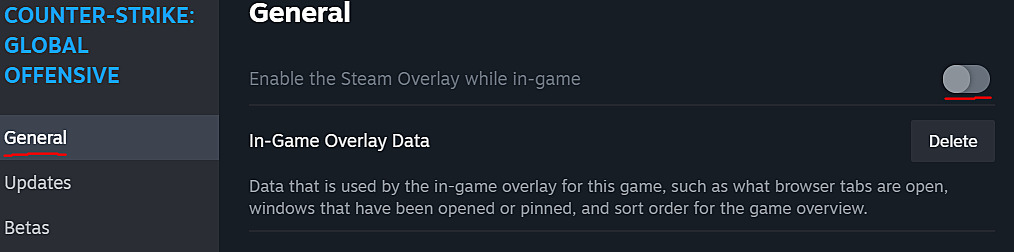
For systems struggling to maintain consistent frame rates, disabling Steam Overlay can provide 5-15% performance improvements depending on hardware specifications. Monitor performance changes using console commands after making this adjustment to quantify the actual benefit for your specific setup.
Action Checklist
- Enable Developer Console in CS2 Game settings
- Use cl_showfps 1 command for basic monitoring during matches
- Test Steam Overlay FPS counter as backup option
- Disable Steam Overlay if experiencing performance issues
- Compare performance with and without overlay for your specific hardware
No reproduction without permission:Game Guides » Where to find FPS counter in CS2? How to activate FPS command in console or Steam overlay in CS2 Master CS2 FPS monitoring with console commands and Steam overlay optimization for competitive advantage